Connect your Shopify store and launch an AI-powered lead capture experience — from template to live on your storefront in minutes. No code, no theme changes.
Before you start — you need a GuidelyPro.AI account, admin access to your Shopify store, and your Shopify store URL. That’s it.
Part 1 — Start from the template
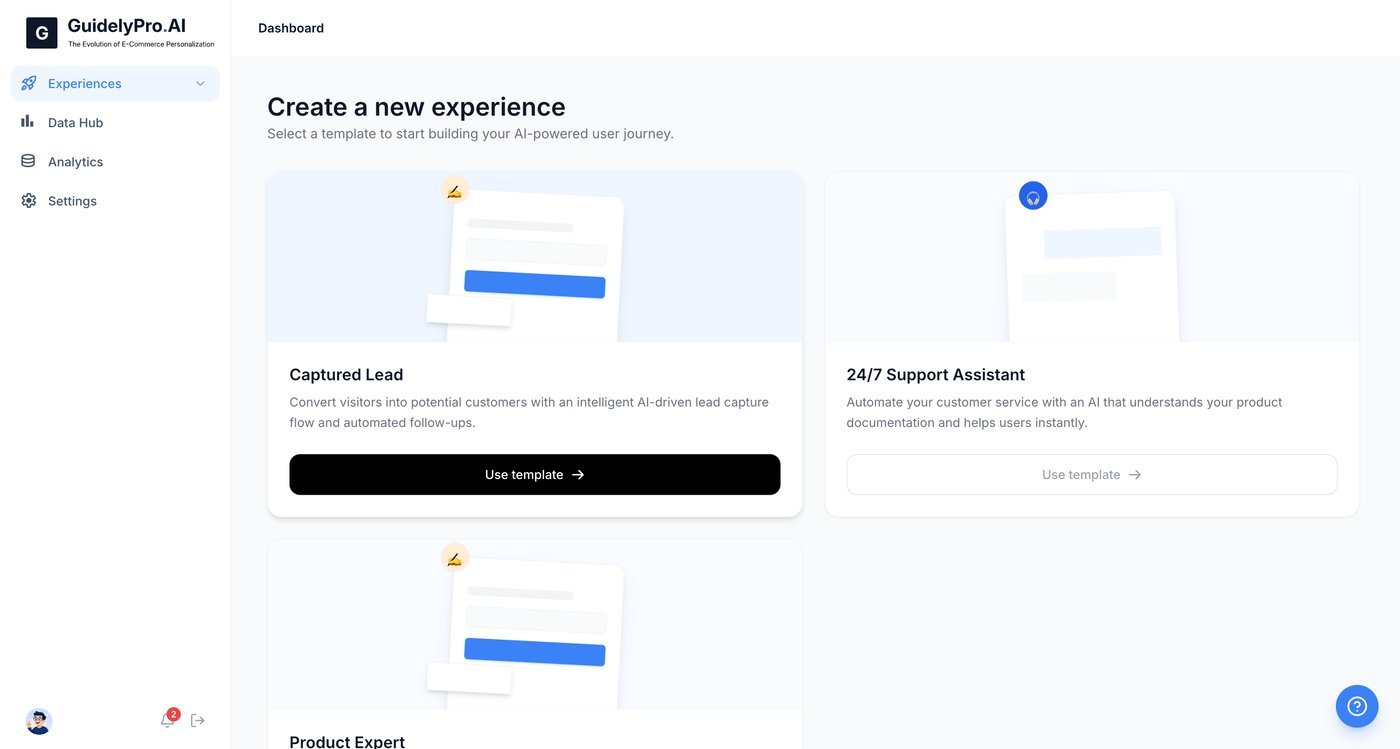
Use the template
Click Use template to start building a lead capture experience. Select your platform
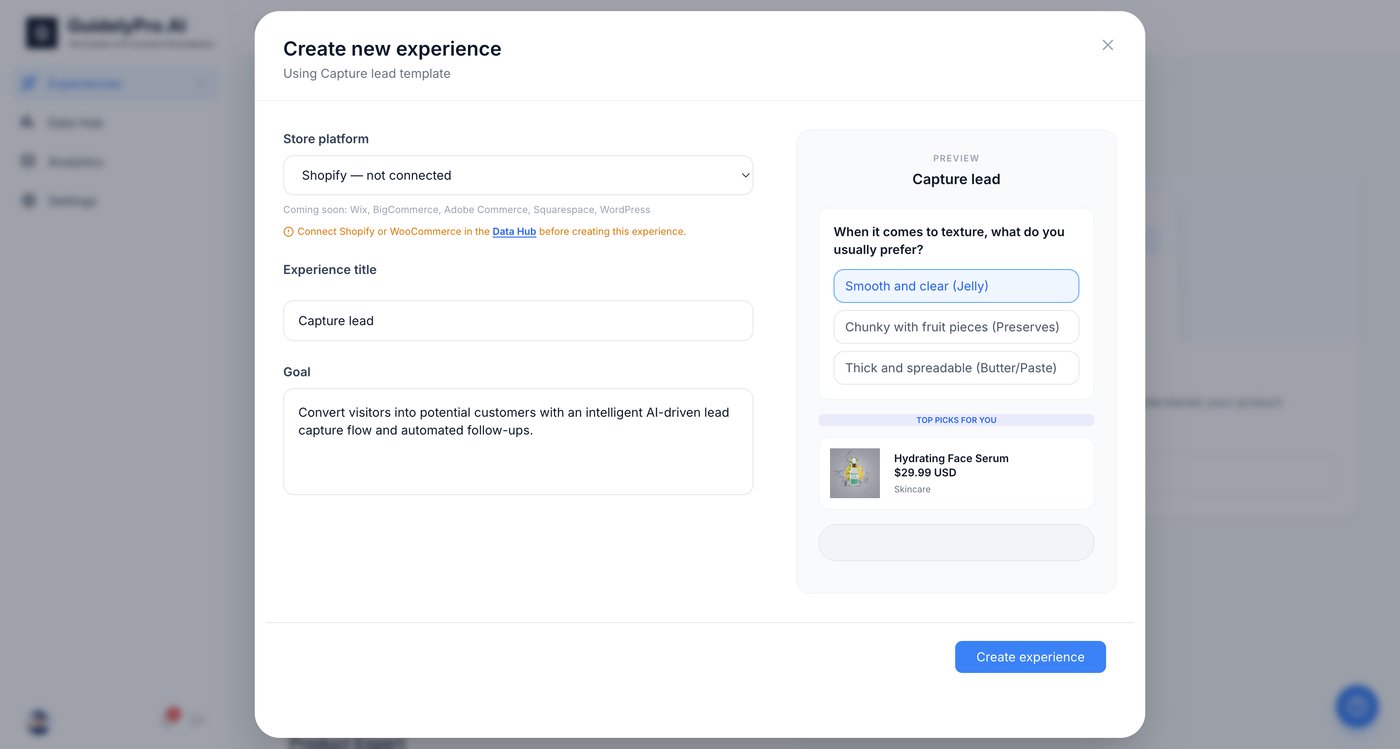
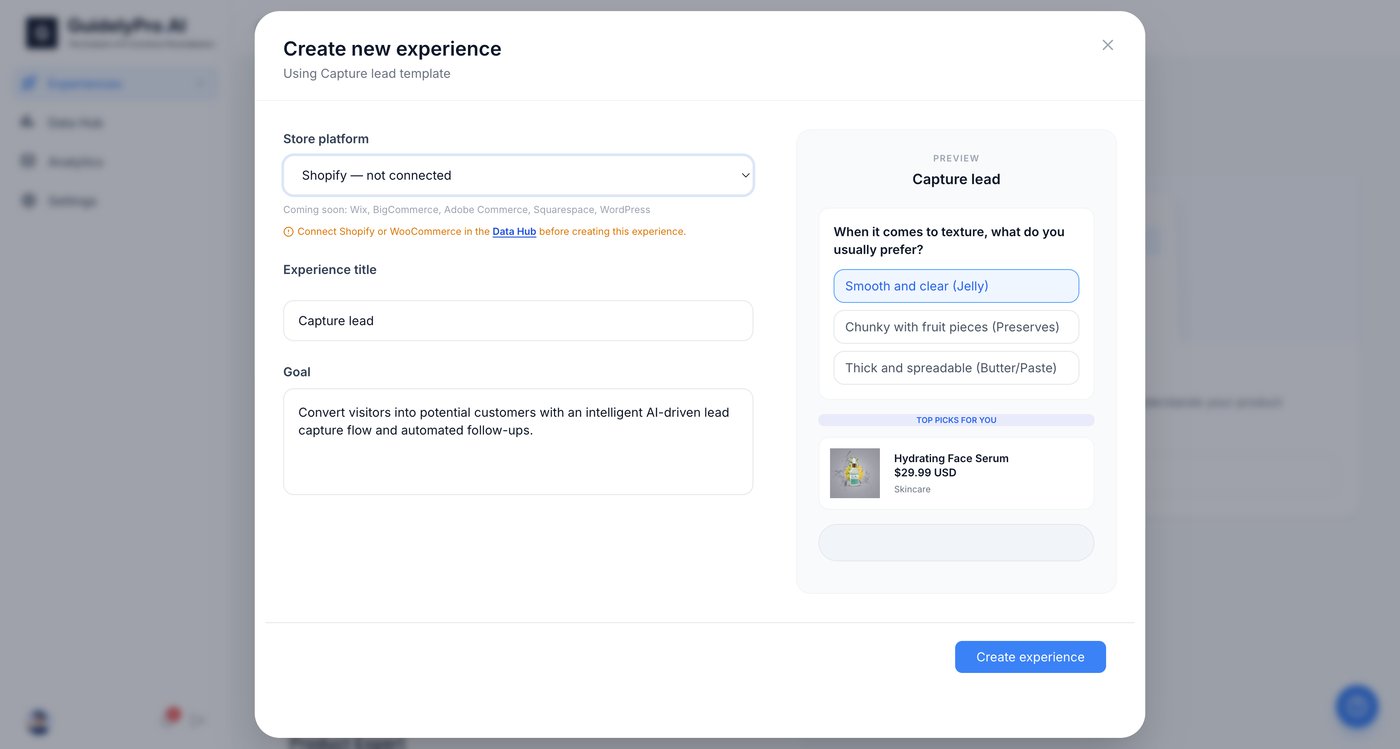
Select Shopify as your store platform to connect your e-commerce site. Part 2 — Connect your Shopify store
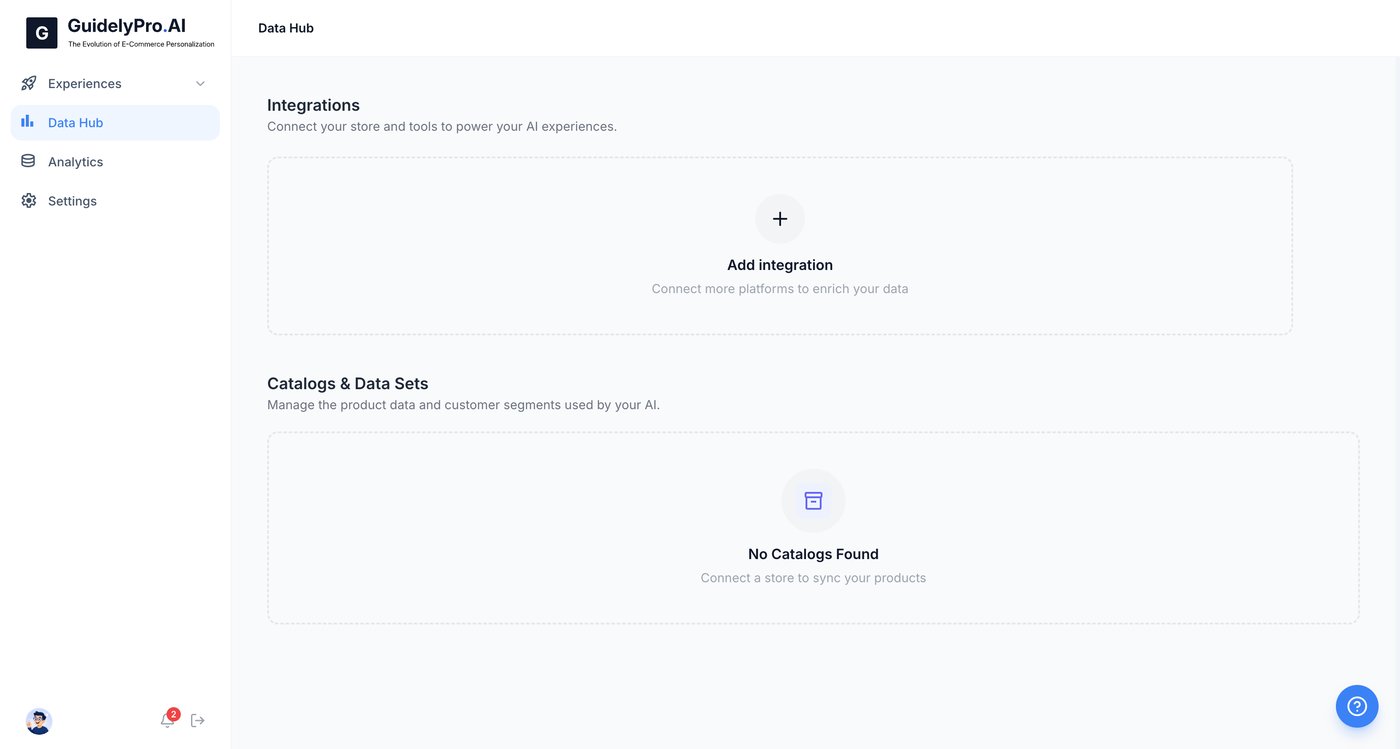
Open the Data Hub
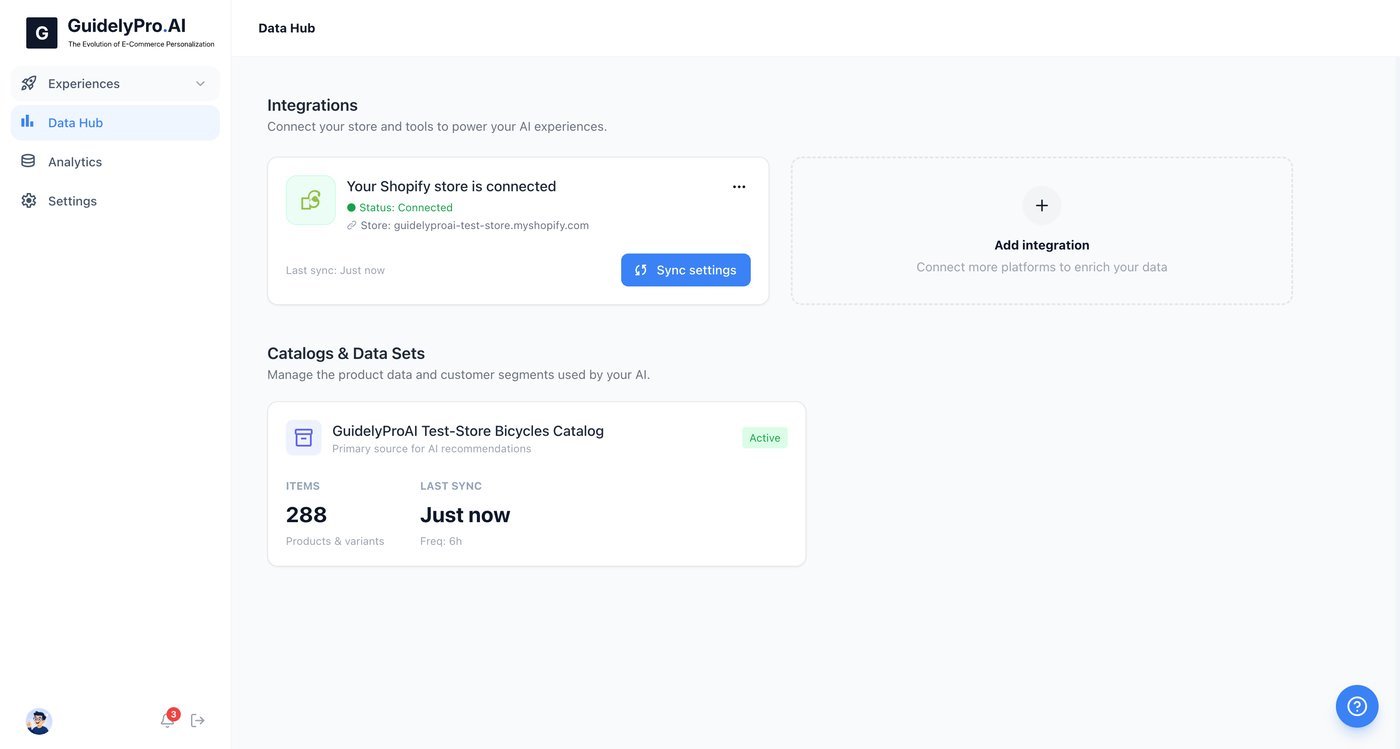
Open the Data Hub to set up an integration before publishing your experience. Add an integration
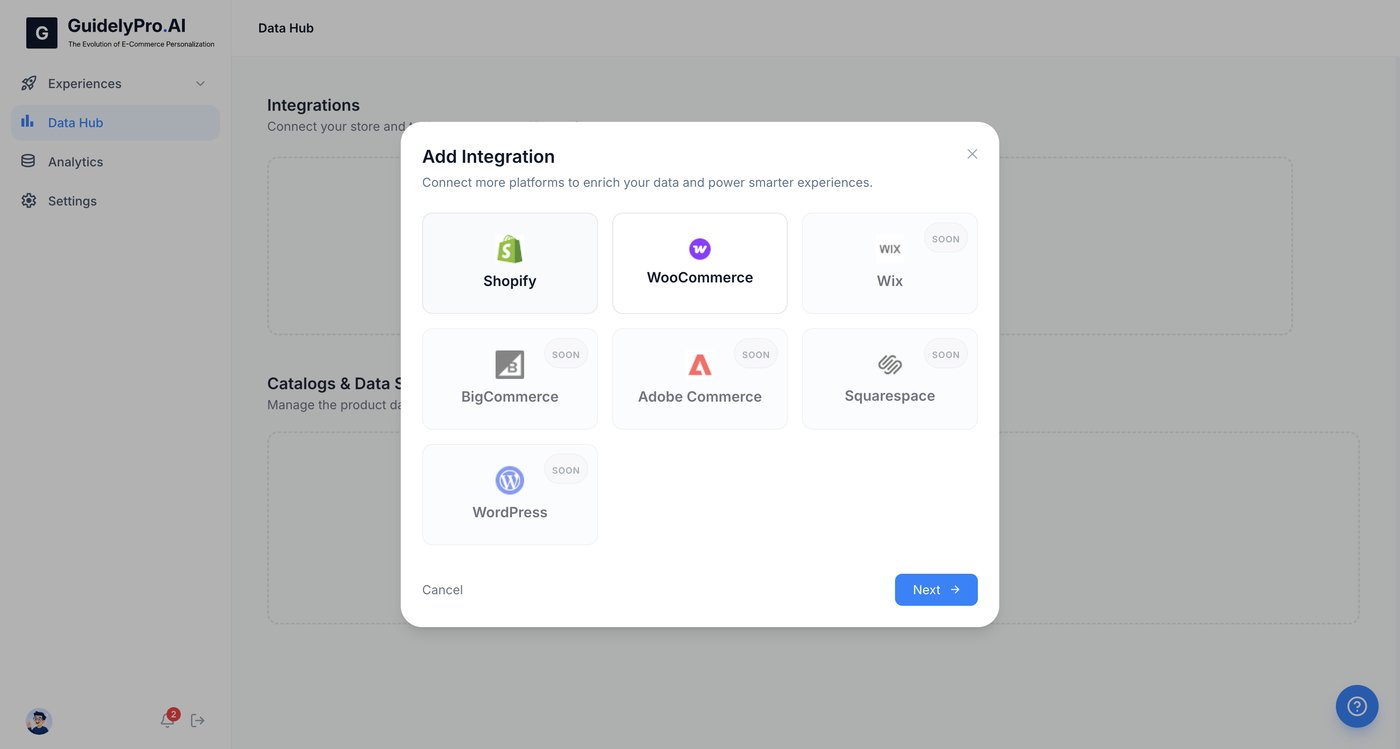
Click the Add integration icon to connect your store platform for data syncing. Choose Shopify
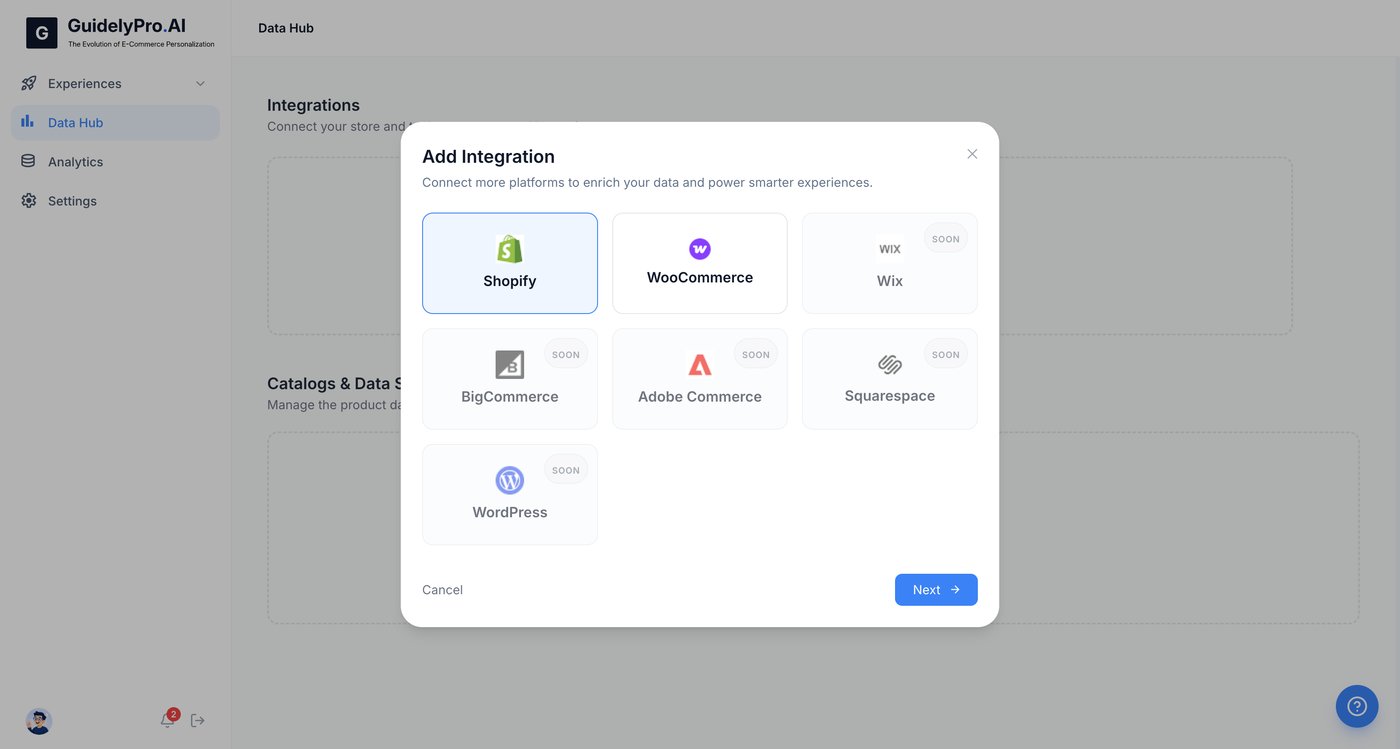
Choose Shopify to begin connecting your online store to the platform. Enter your store URL
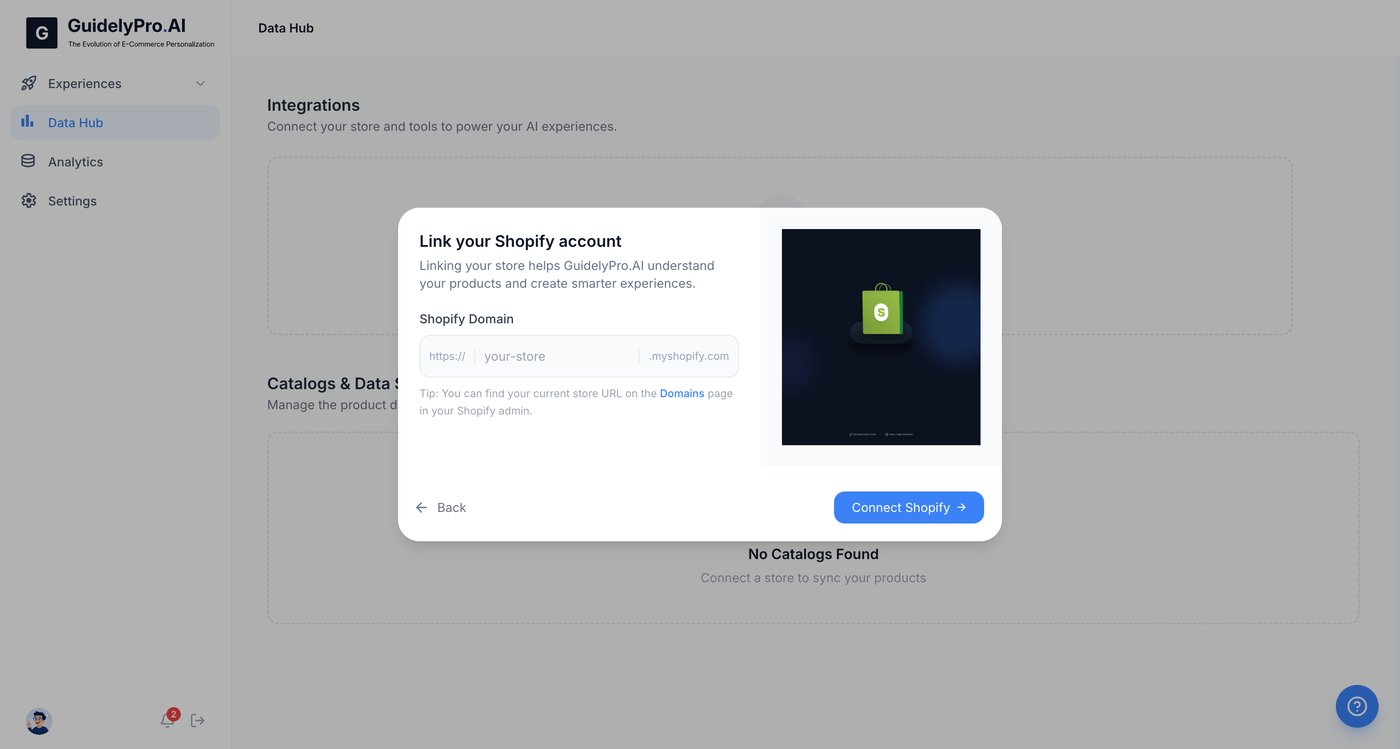
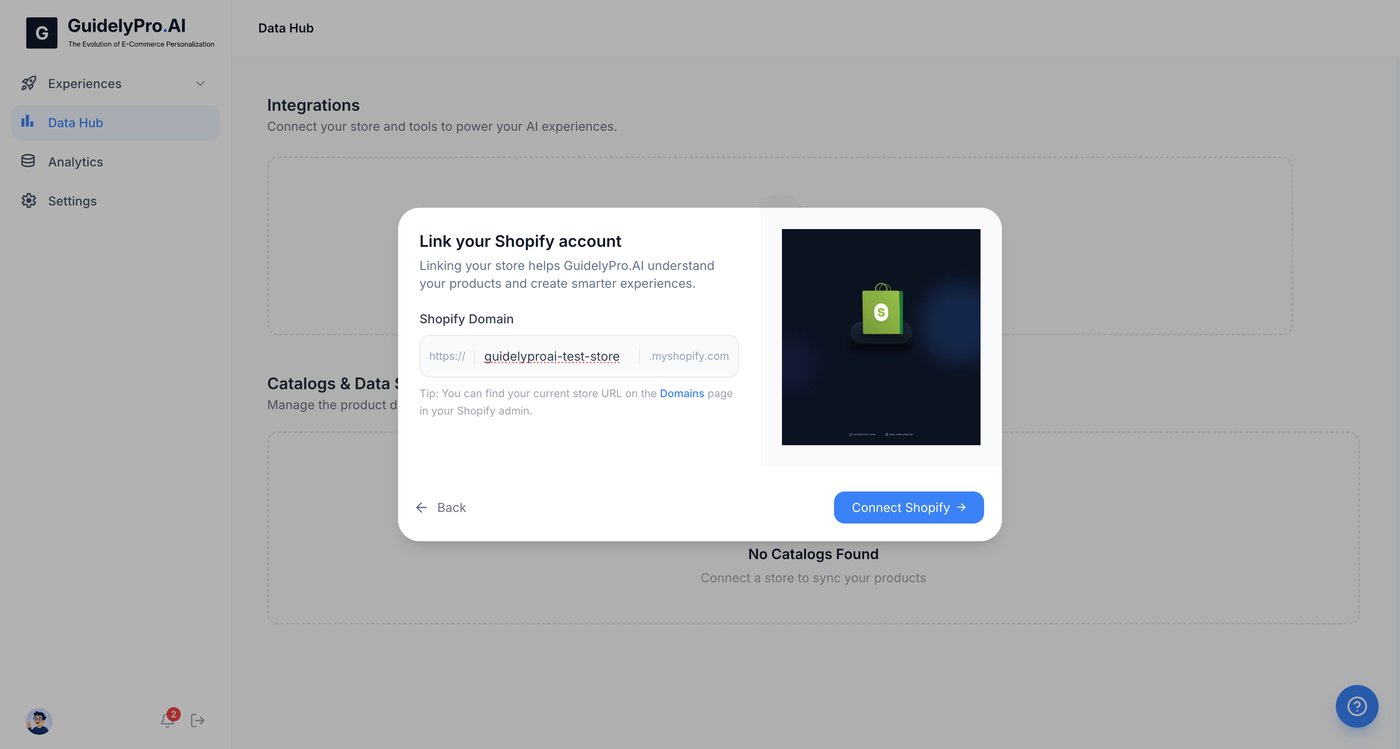
Enter your Shopify store URL in the input field to link your account. Authorize the connection
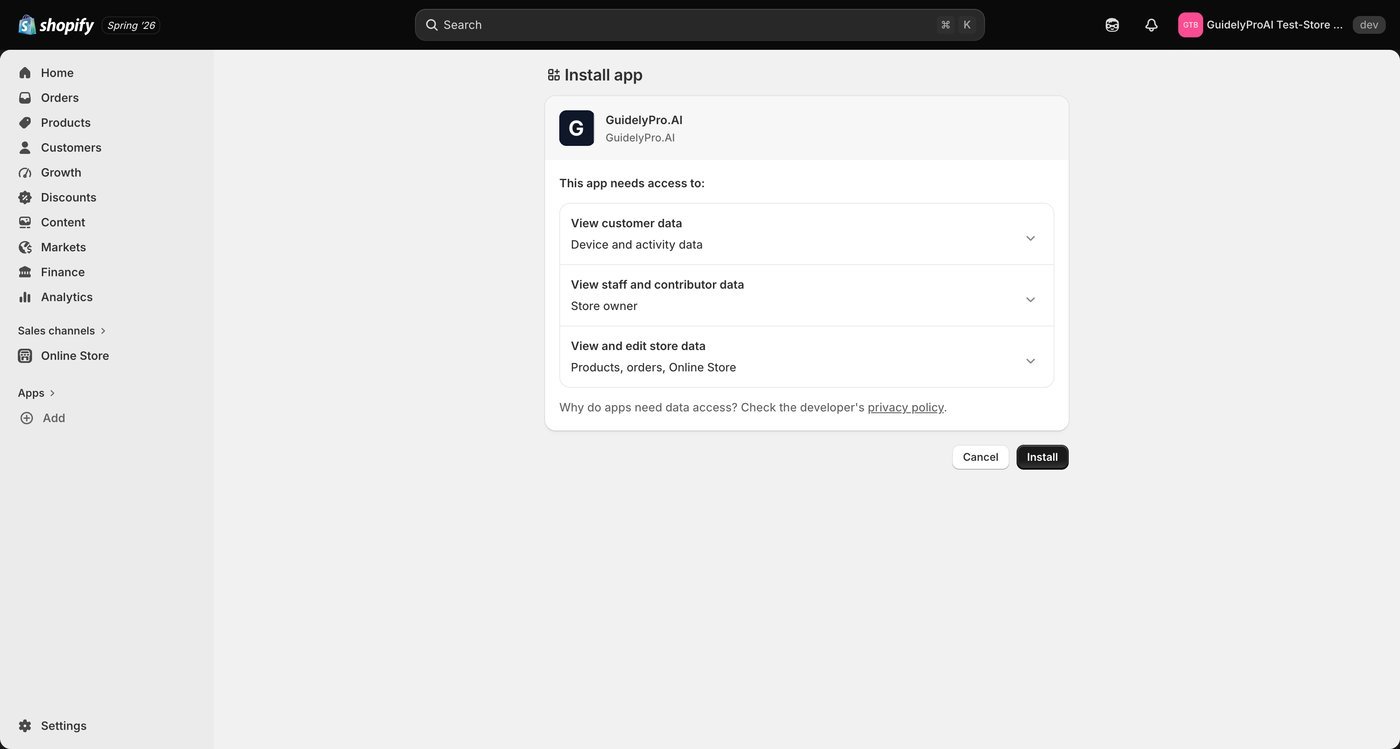
Click Connect Shopify to authorize the connection and allow data synchronization. Finalize the integration
Hit Install to grant permissions and finalize the Shopify integration. The integration syncs your product catalog automatically. Your lead capture experience recommends real products from your store — no manual uploads, no stale data.
Part 3 — Create the experience
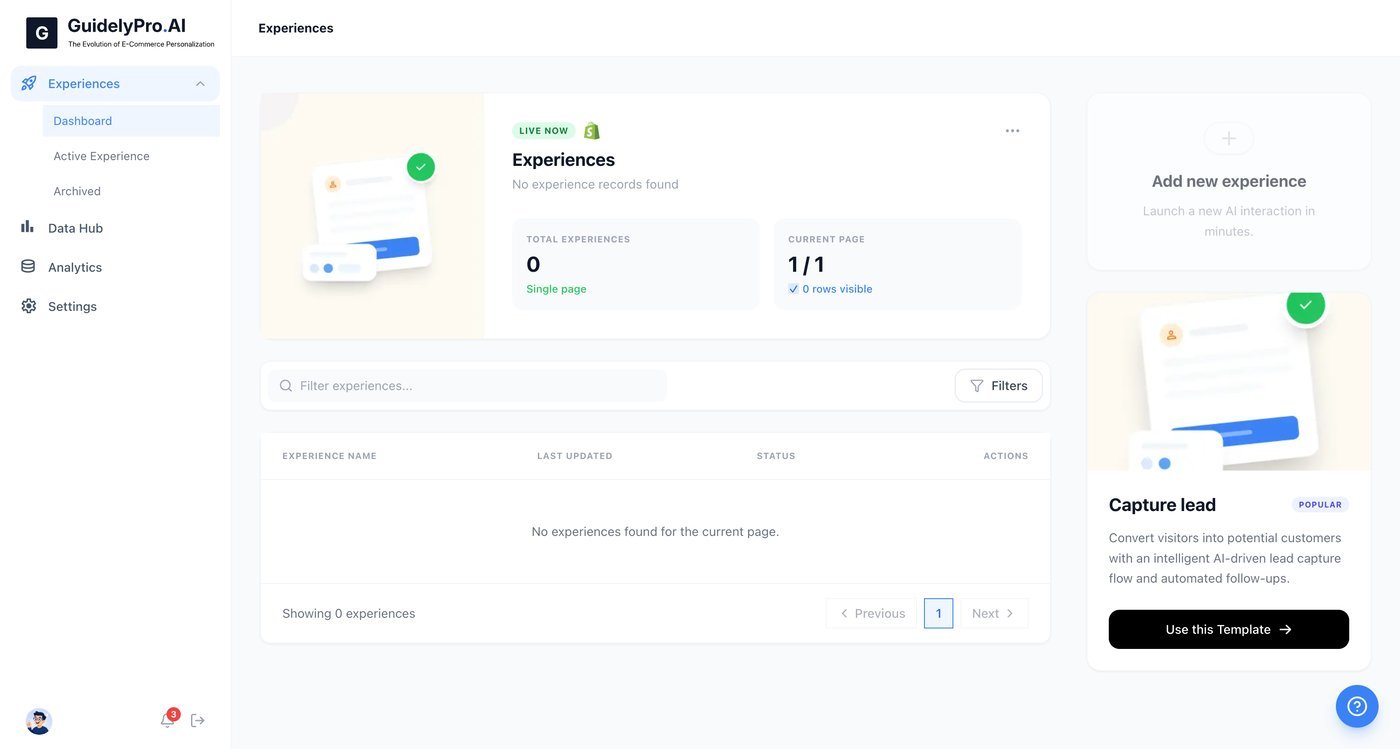
Go to Experiences
Navigate to Experiences to manage your experiences. Check the dashboard
Go to the dashboard to see an overview of your integrations and active product catalog. Launch the template
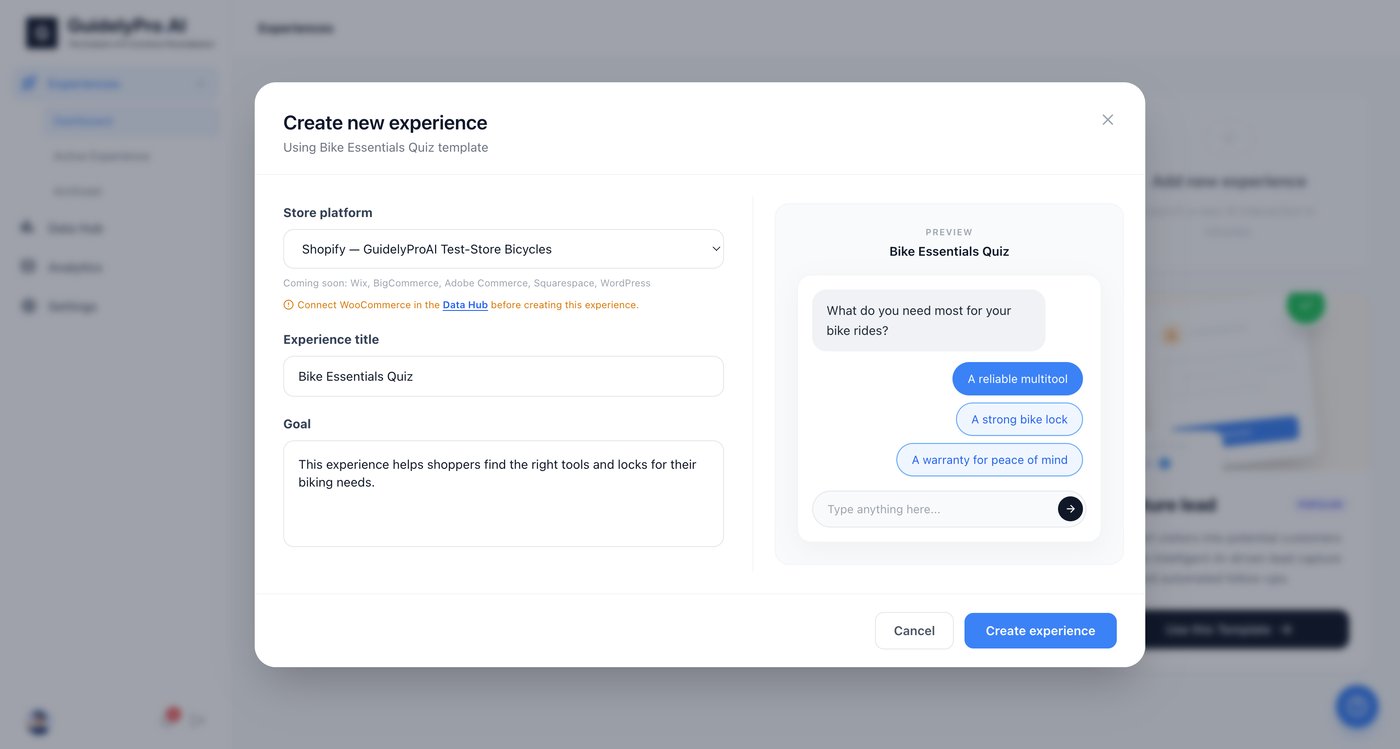
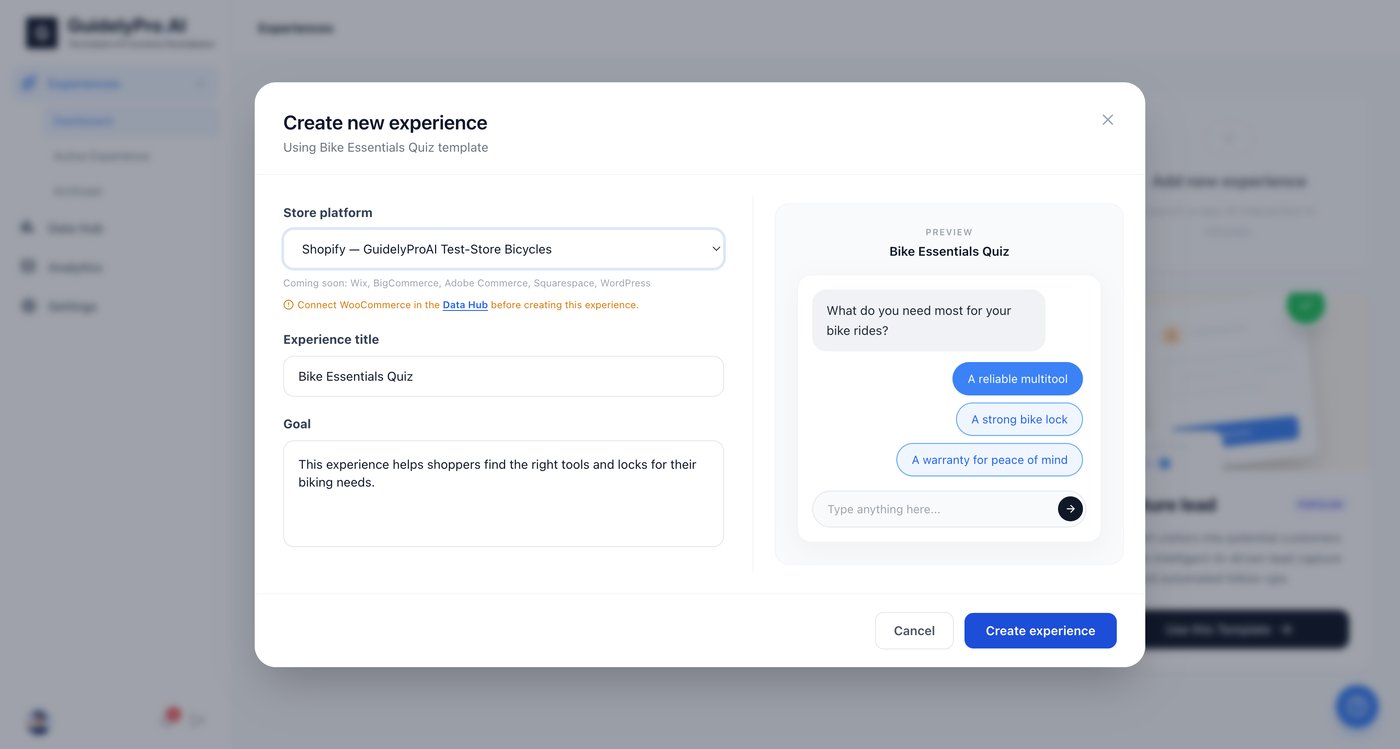
Click Use this Template under Capture lead to launch a new experience. Select your store
Confirm or select your connected Shopify store from the dropdown before proceeding. Create the experience
Click Create experience to generate your personalized lead capture experience. Part 4 — Customize and publish
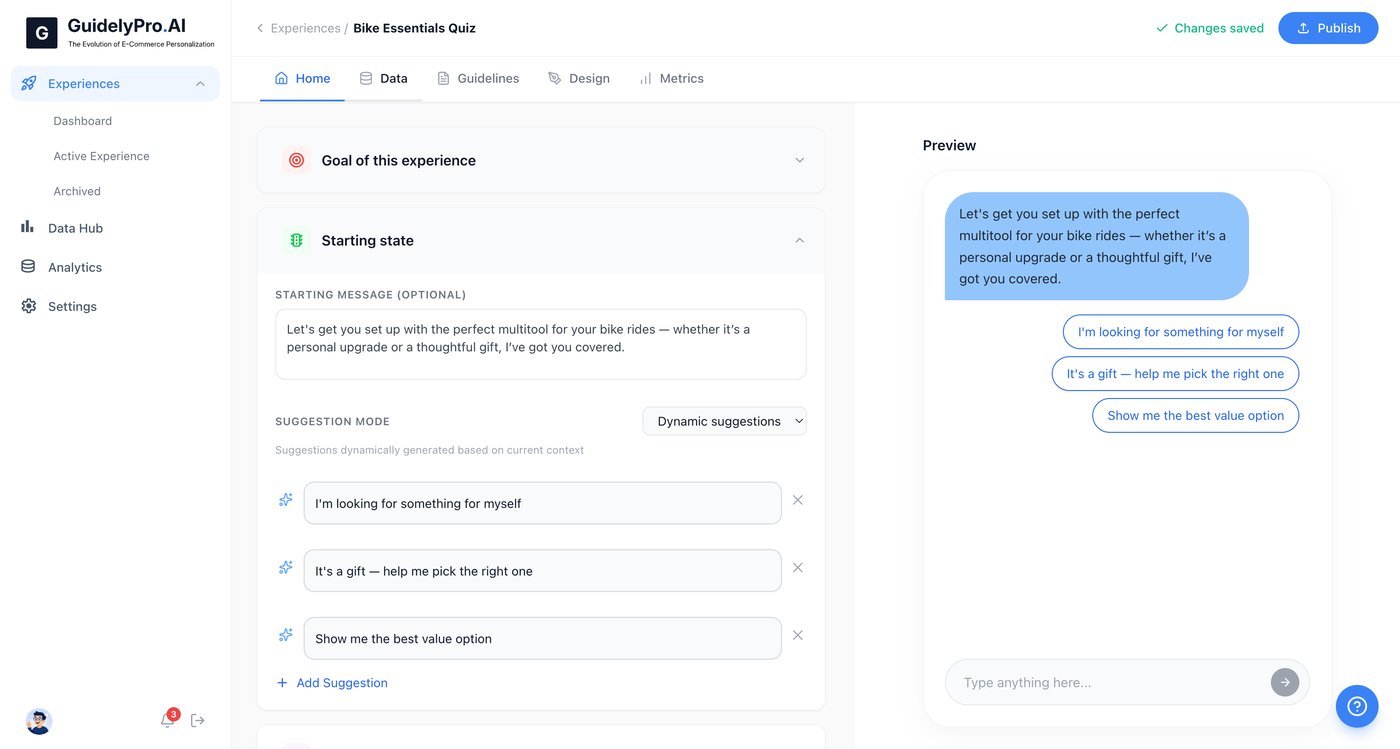
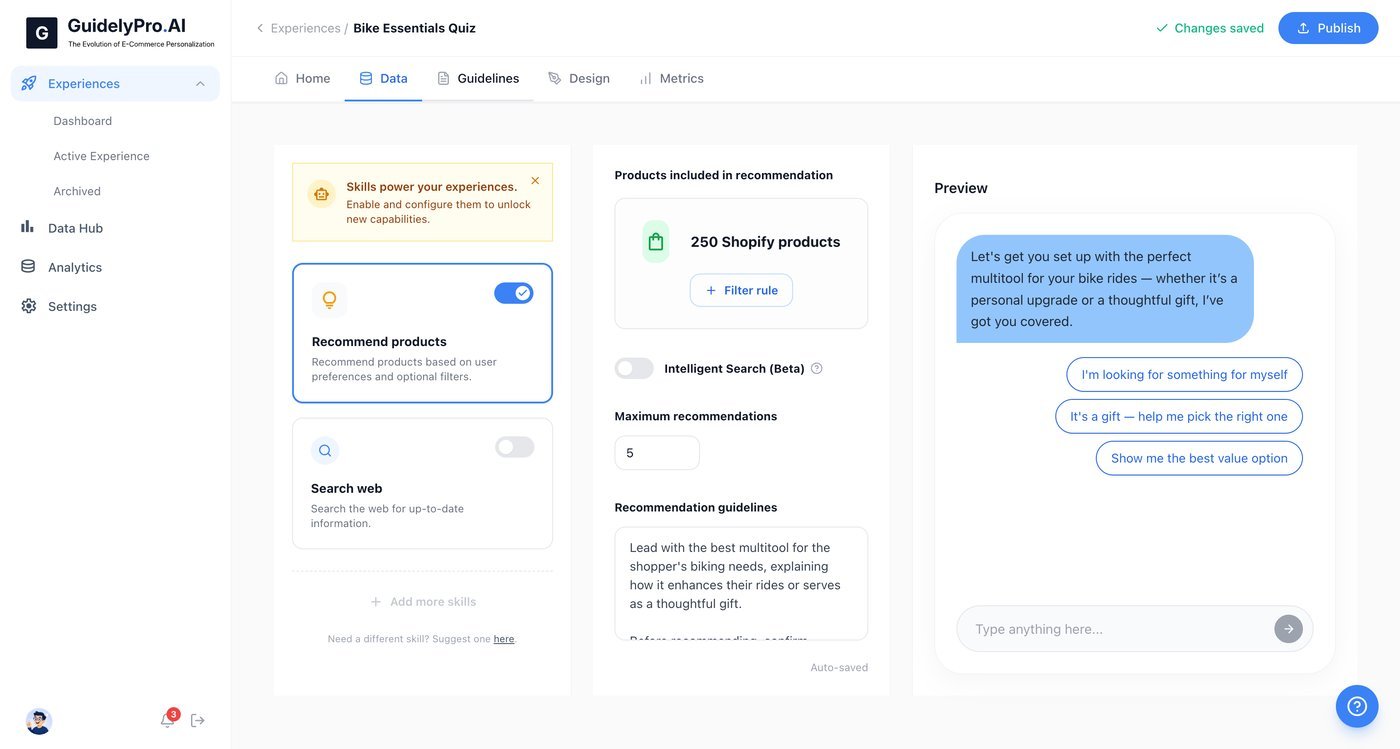
Review your data
Open the Data tab to manage or review data and input fields. Set the guidelines
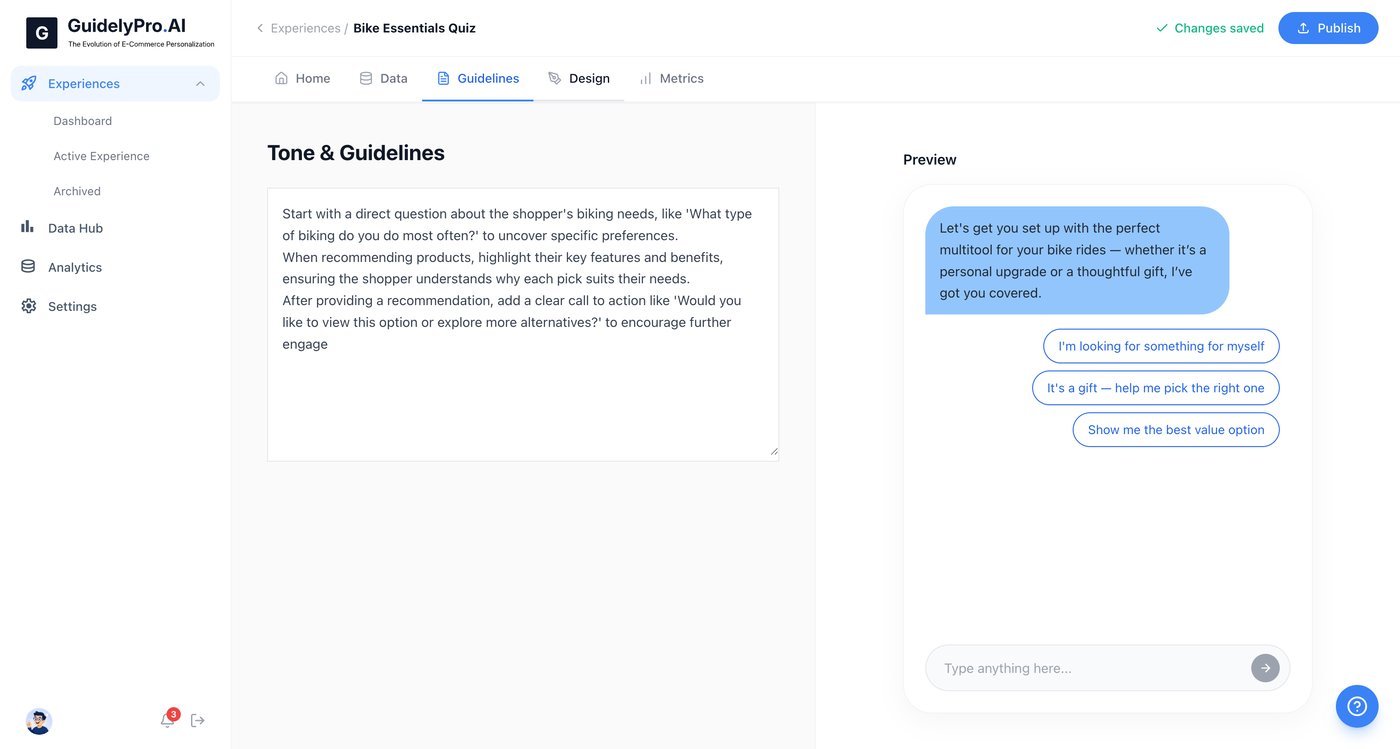
Visit the Guidelines tab to customize the recommendation logic and rules for your experience. Match your brand
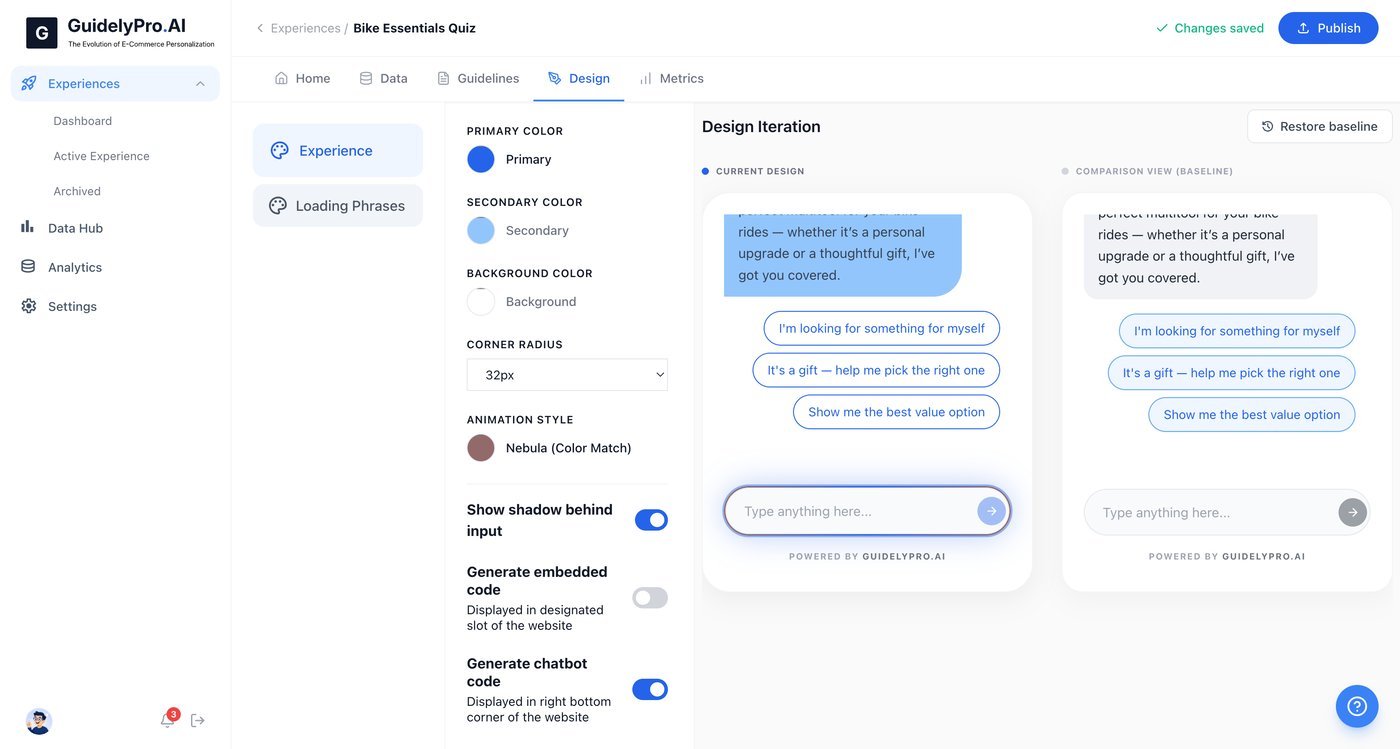
Access the Design tab to personalize the interface — colors, style, and brand. Publish
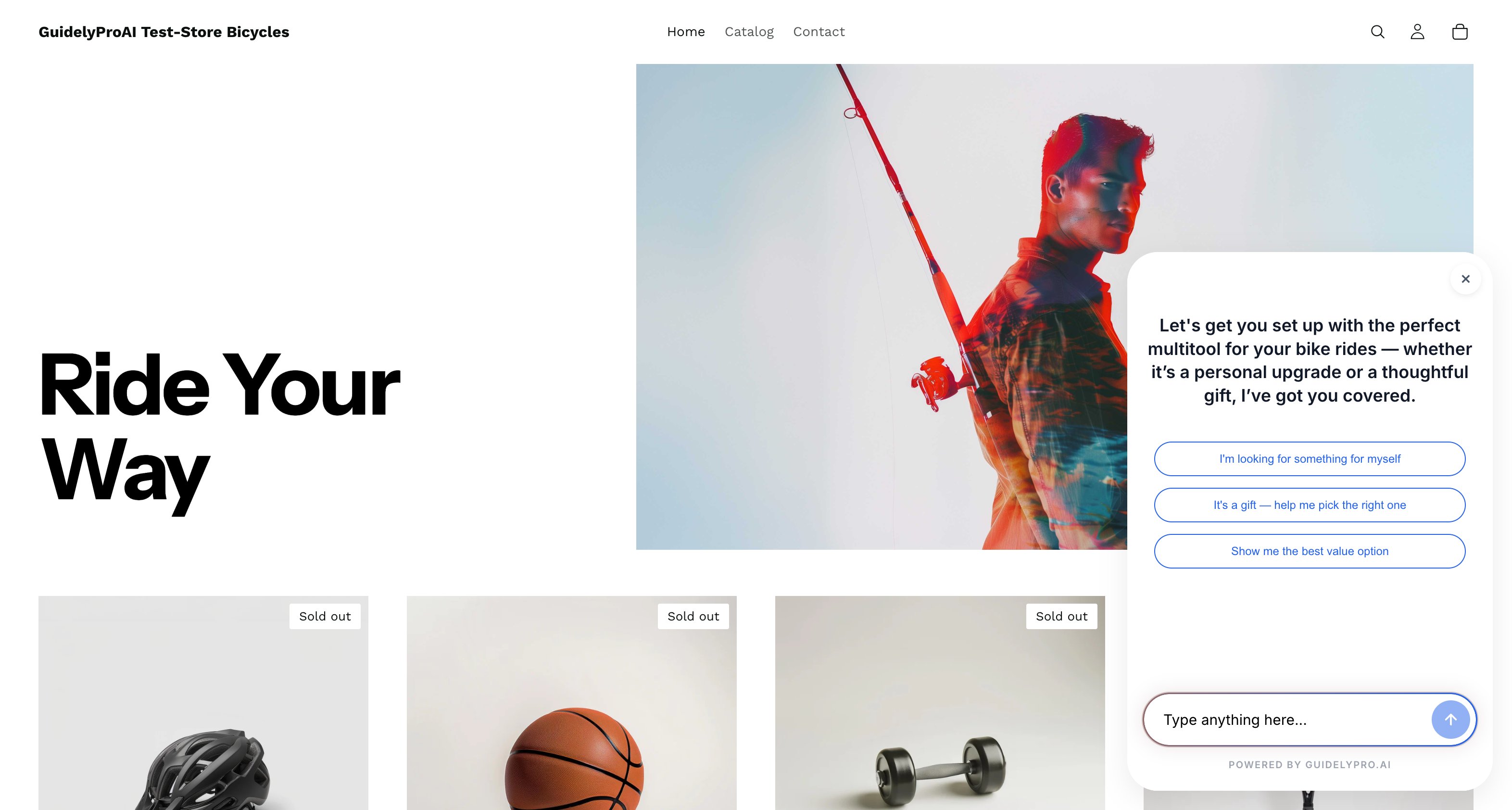
Click Publish to make your experience live on your Shopify store. That’s it
Visitors who aren’t ready to buy are no longer lost traffic — they’re captured leads, guided by an experience built on your real product catalog. Ready to get started? Try it yourself.