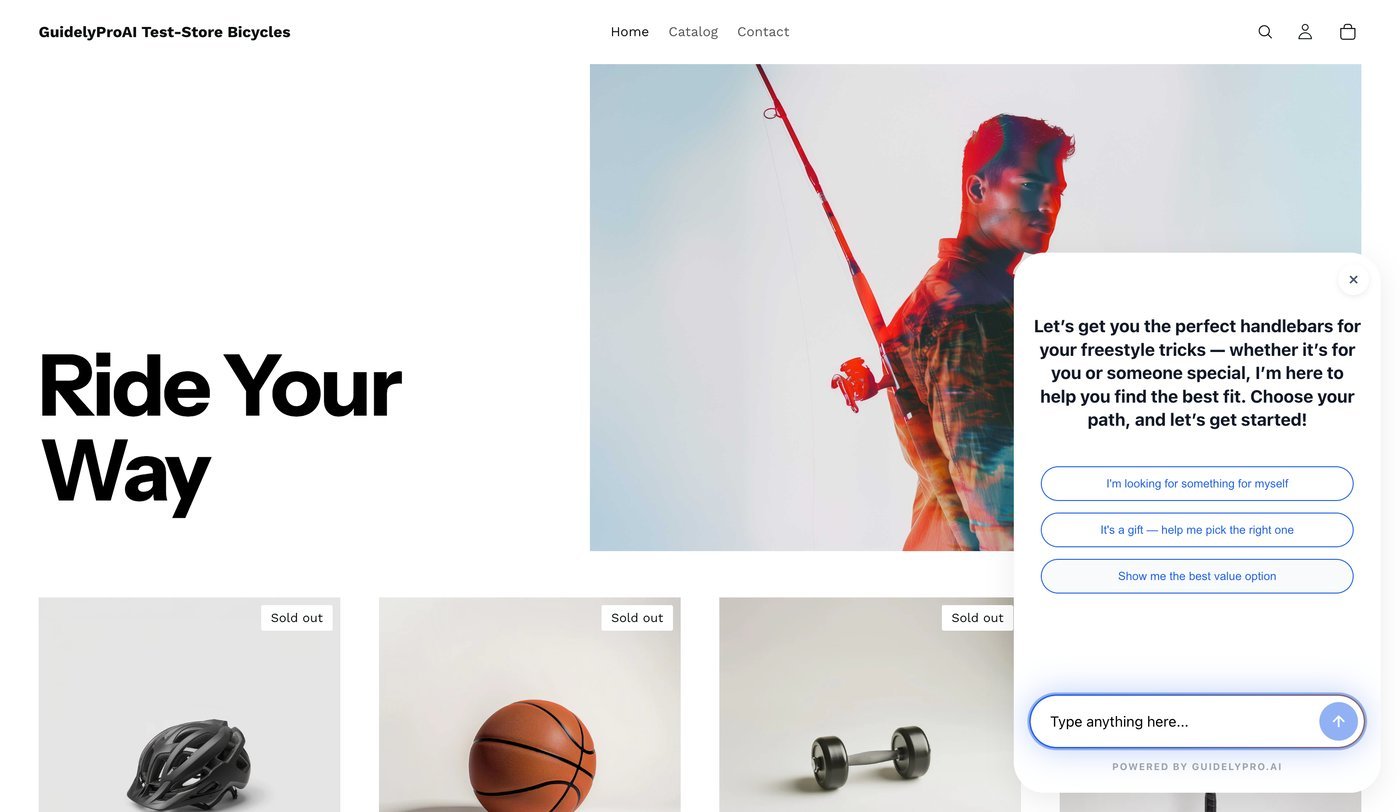
From App Store search to a live guided-selling experience on your store — in about five minutes. No code, no theme changes, no developer.
Before you start — you need admin access to your Shopify store and your Shopify domain (you’ll find it in your Shopify admin). That’s it.
Part 1 — Install the app
1
Open the Apps section
In your Shopify admin, click Add under Apps to start adding new functionality to your store.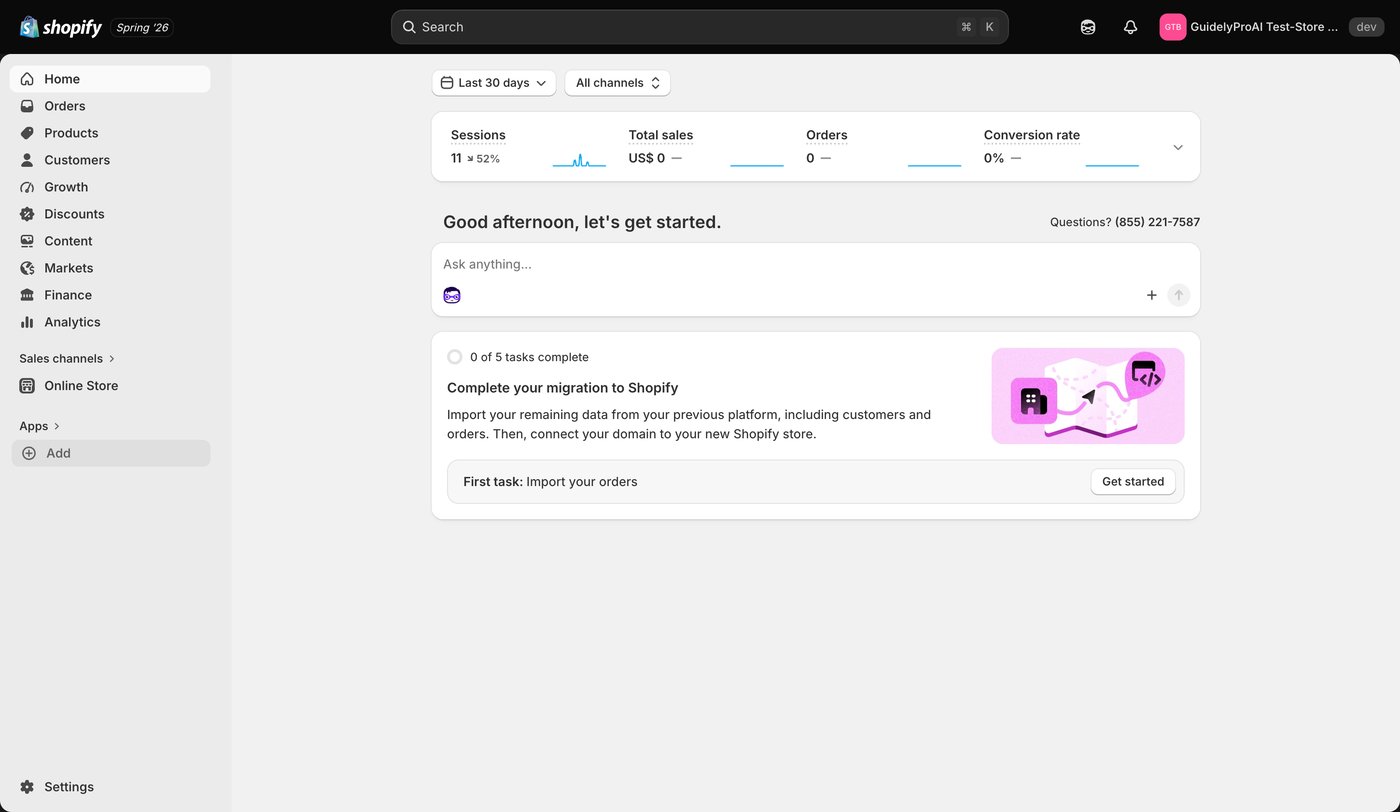
2
Go to the Shopify App Store
Select Shopify App Store to browse the full app catalog.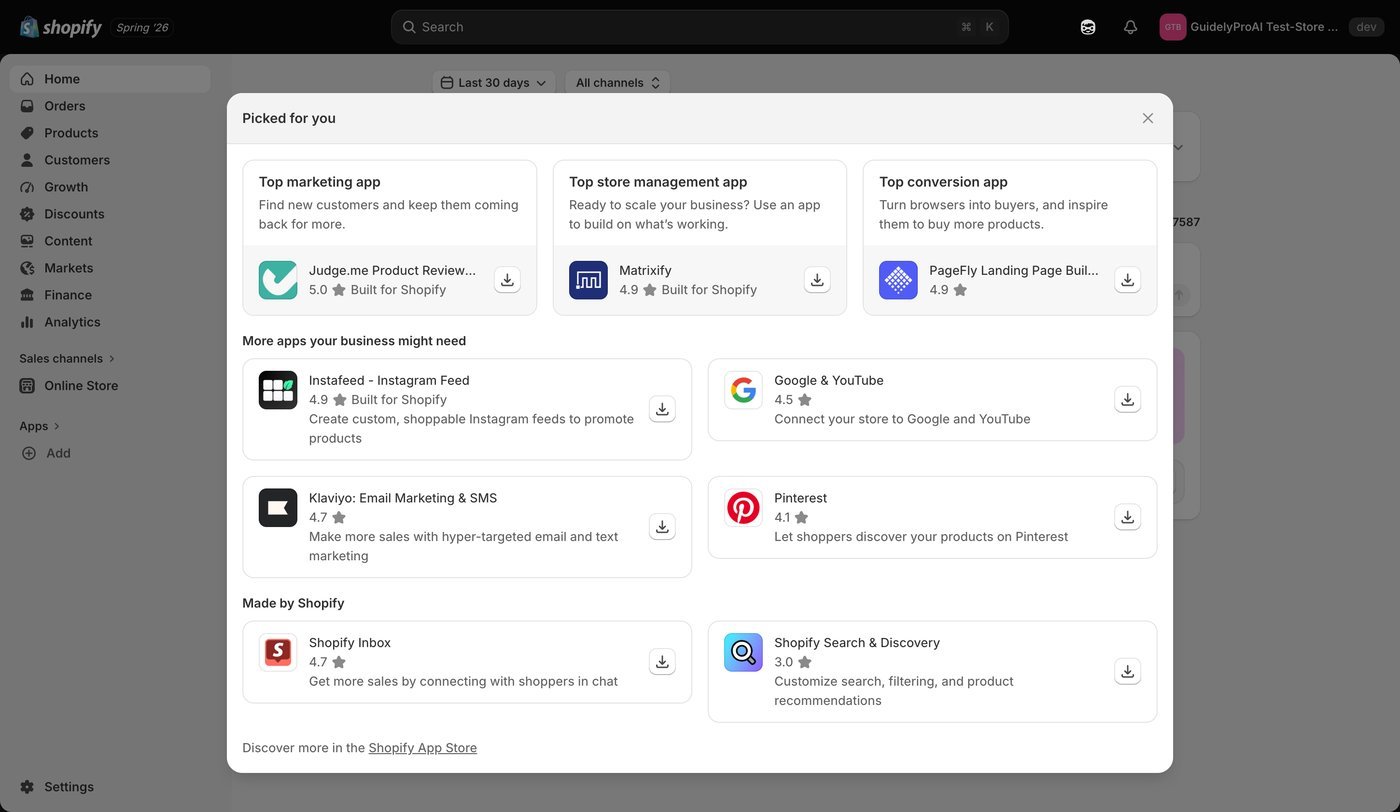
3
Search for GuidelyPro.AI
Use the search bar to find the GuidelyPro.AI app.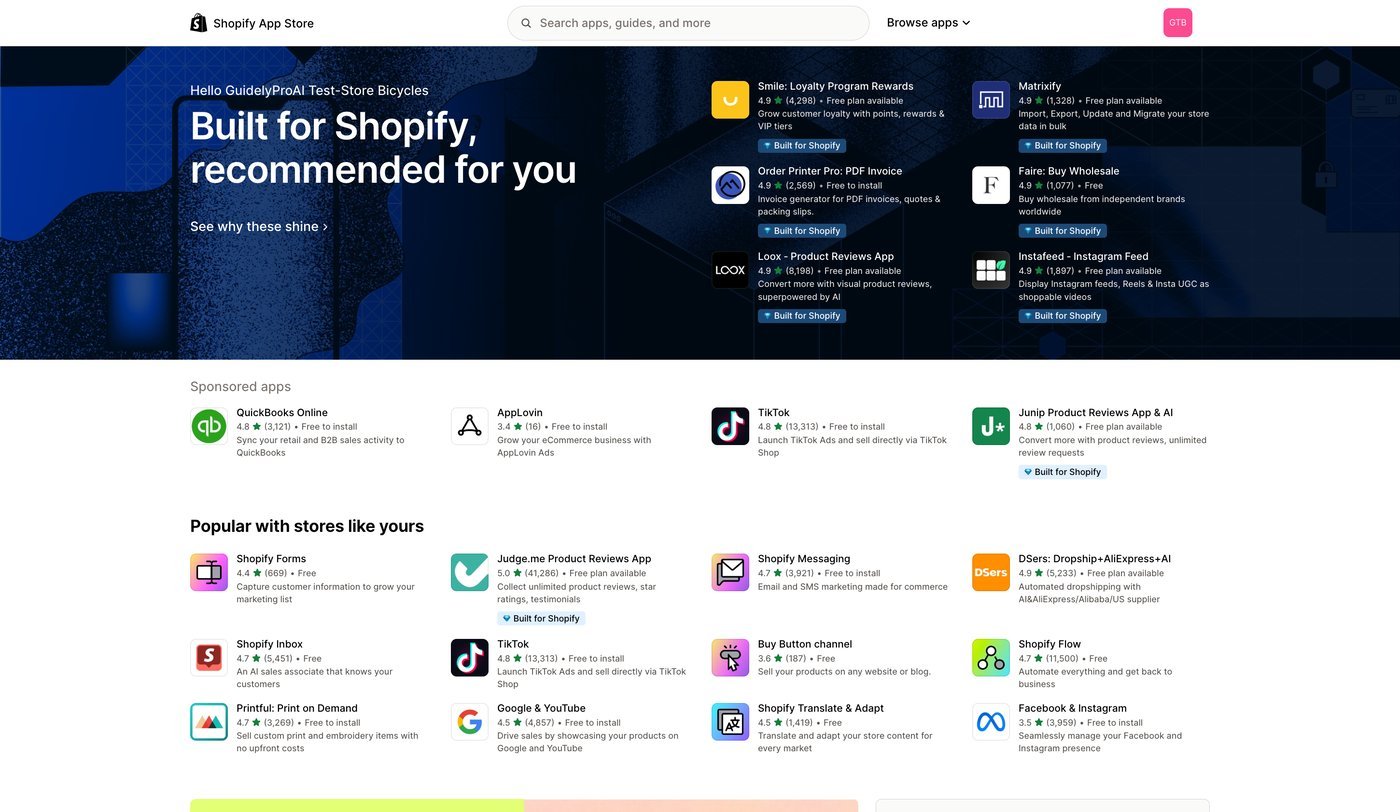
4
Open the search result
Click GuidelyPro.AI in the search results to view it in detail.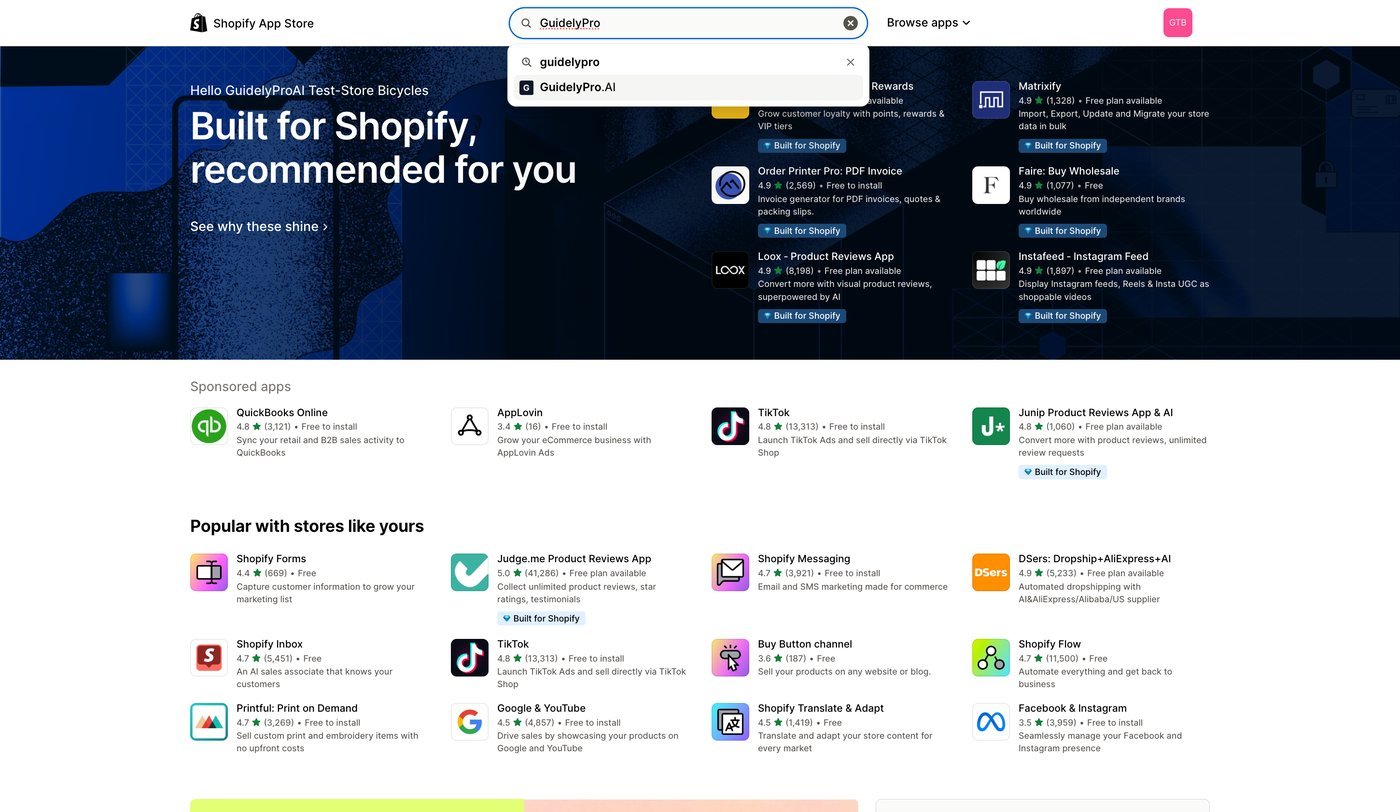
5
Review the listing
Open the app listing to review its overview, features, and user reviews before installing.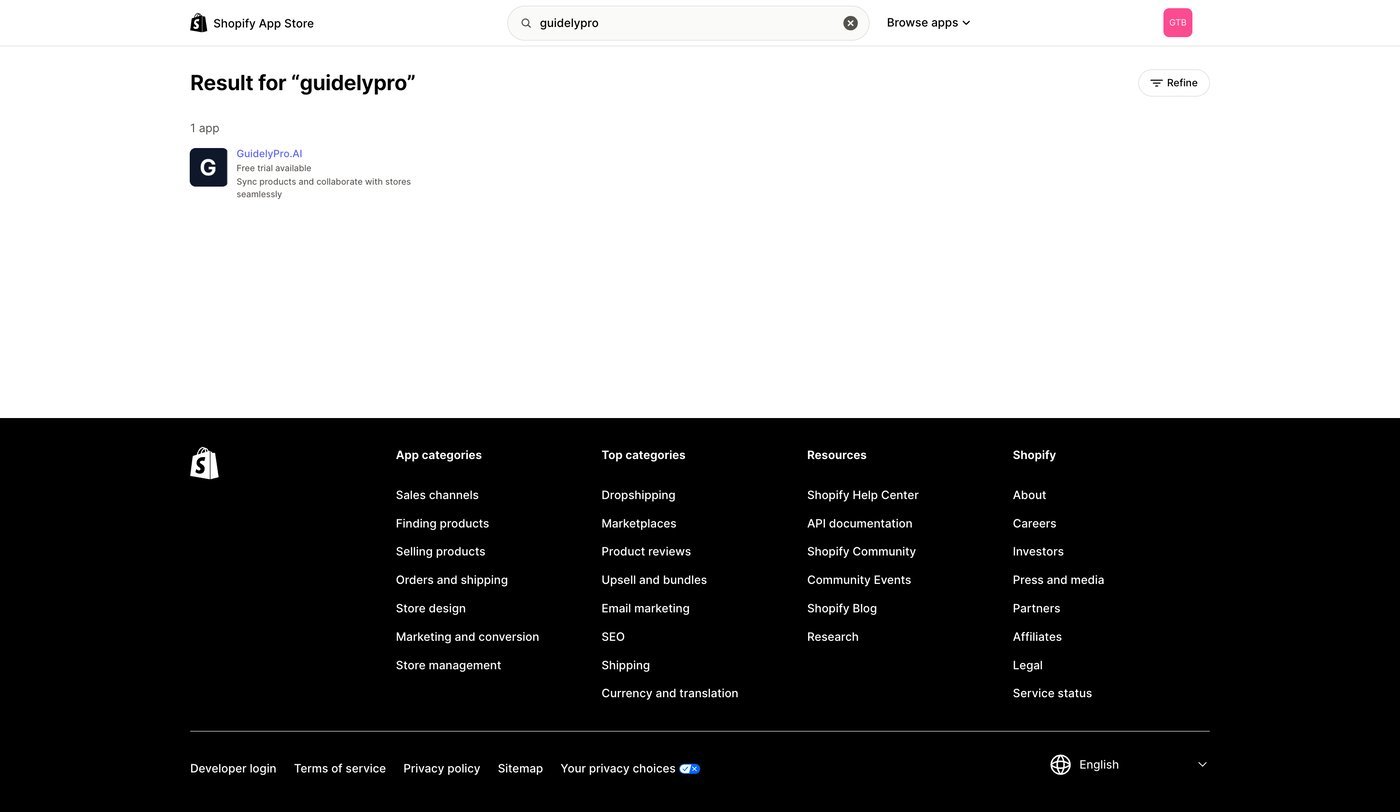
6
Install
Press Install to begin adding the app to your Shopify store.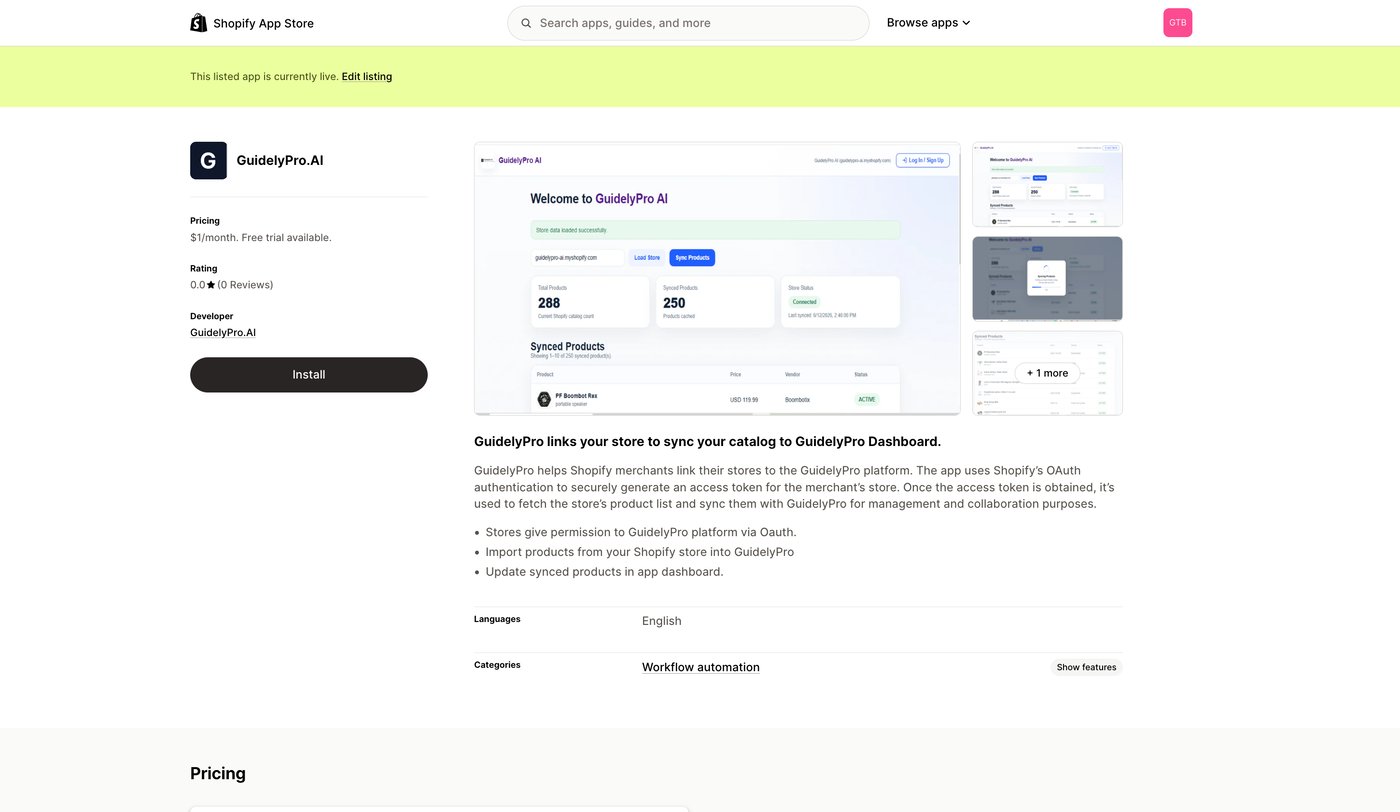
7
Accept permissions
Review and accept the listed permissions, then confirm the installation.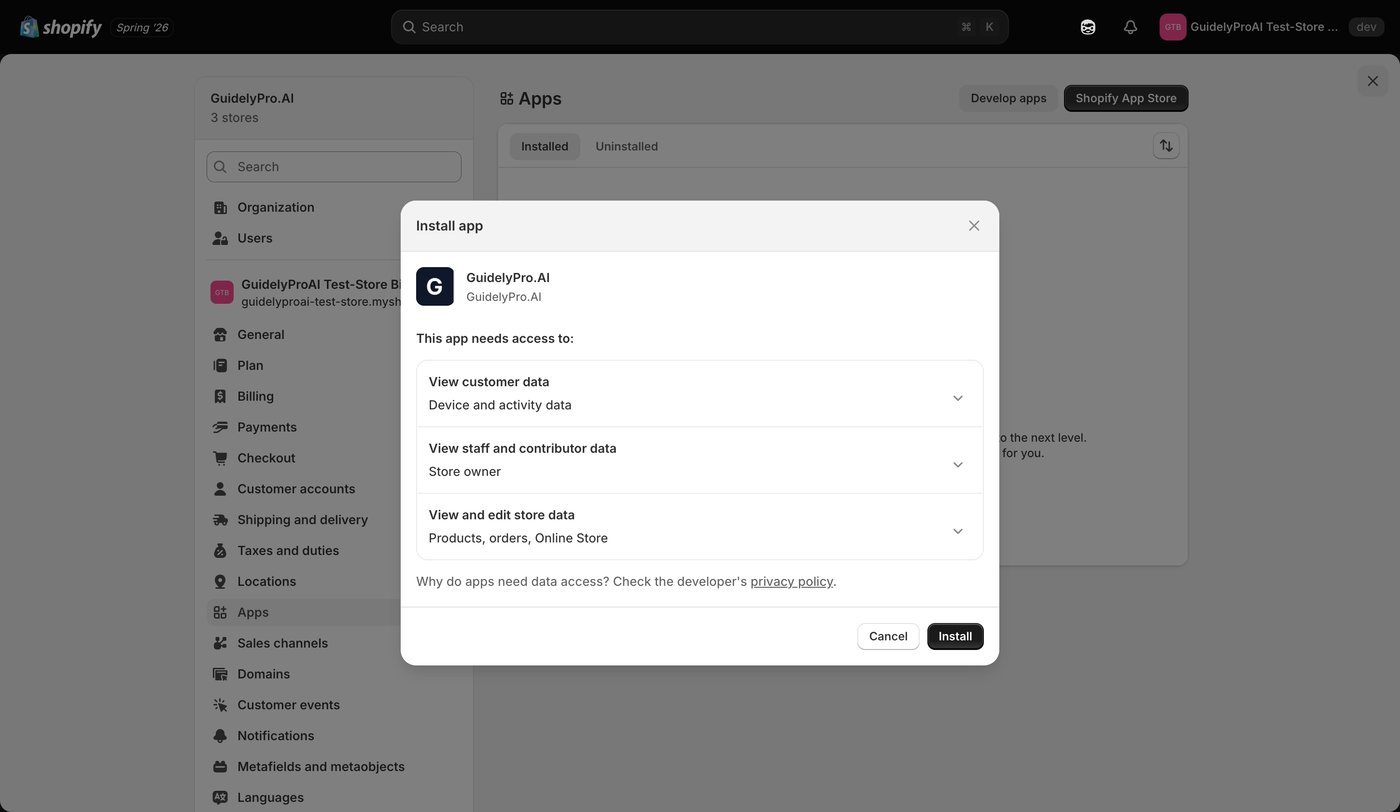
Part 2 — Create your account and connect your store
1
Open the app
Open GuidelyPro.AI from your Shopify admin.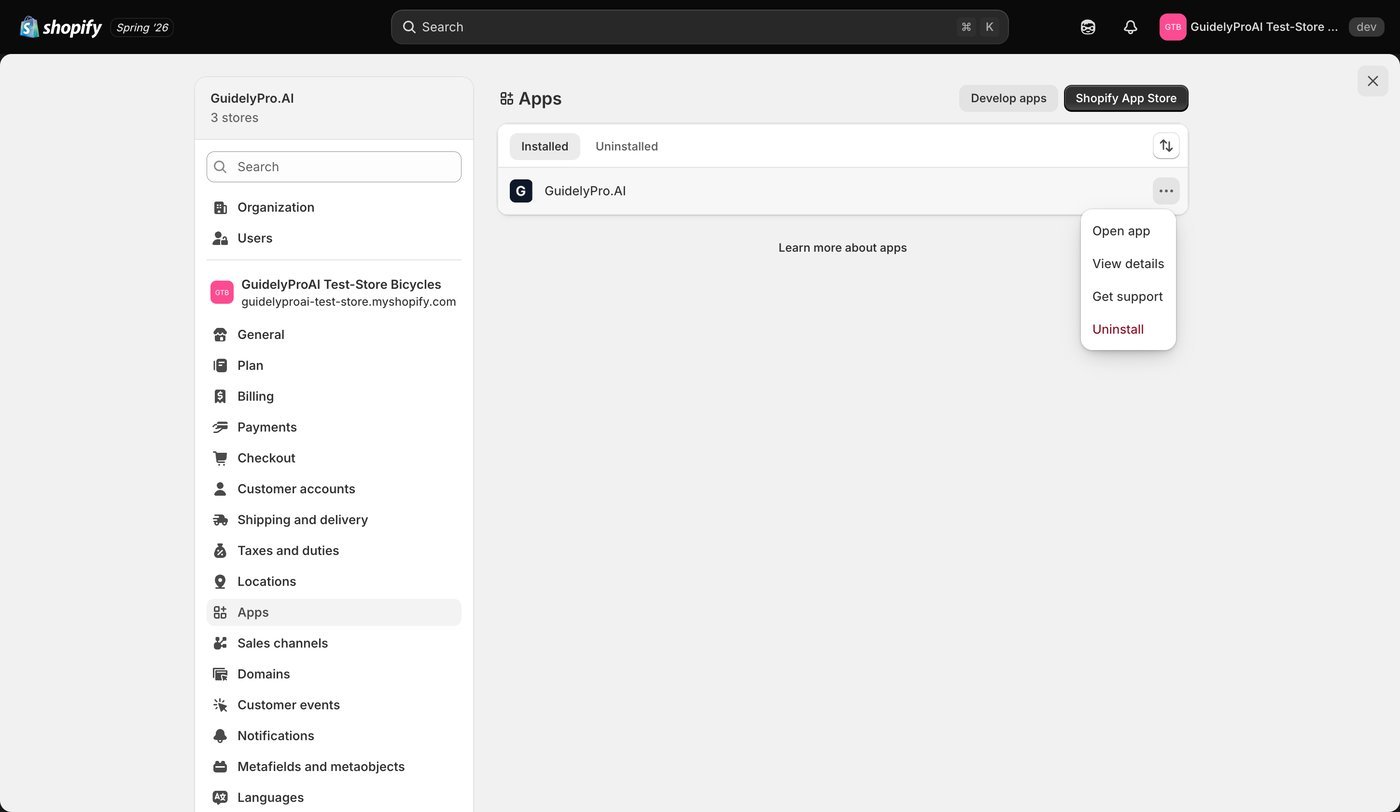
2
Sign up or log in
Sign up or log in to GuidelyPro.AI. You’ll create your experience in seconds and publish it directly to your store — no technical skills needed.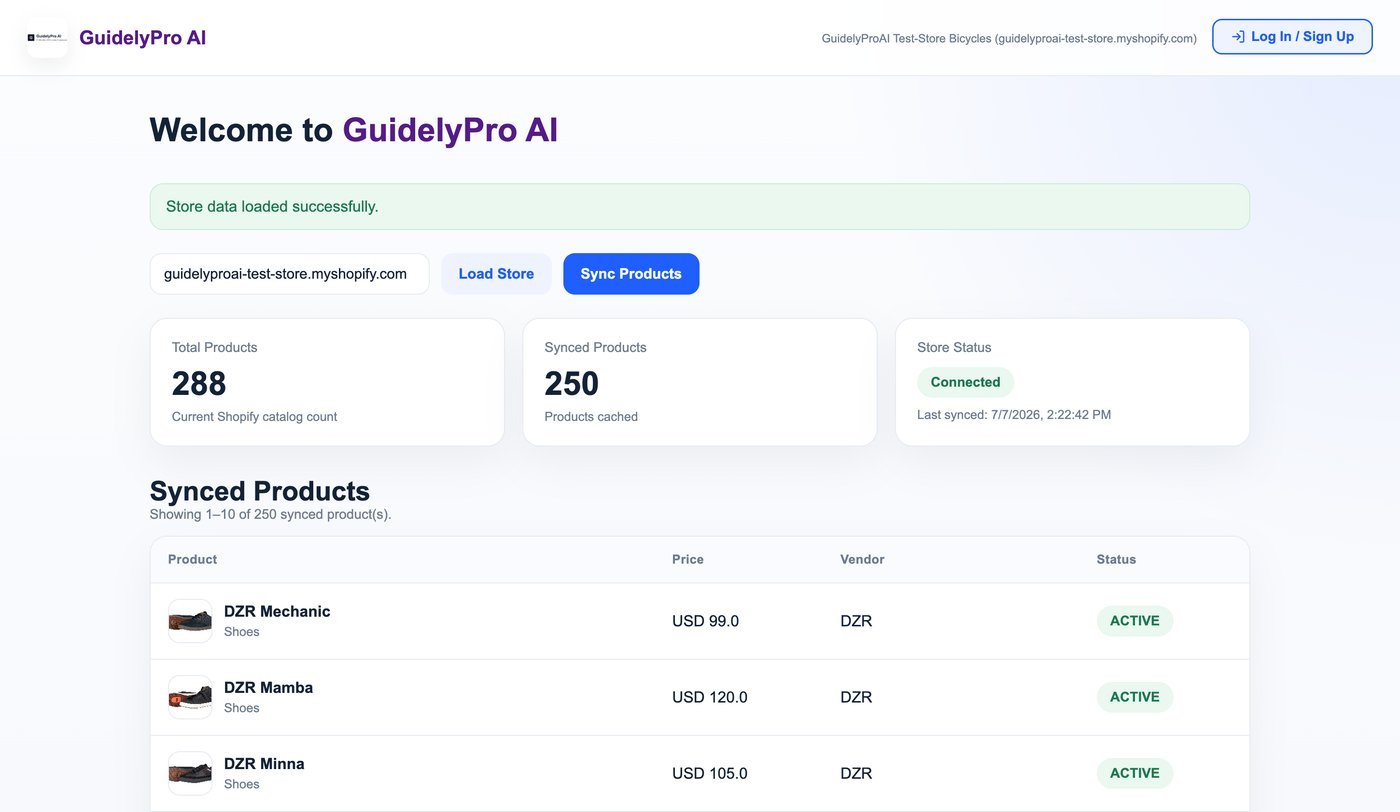
3
Continue
Complete the sign-up, then click Continue.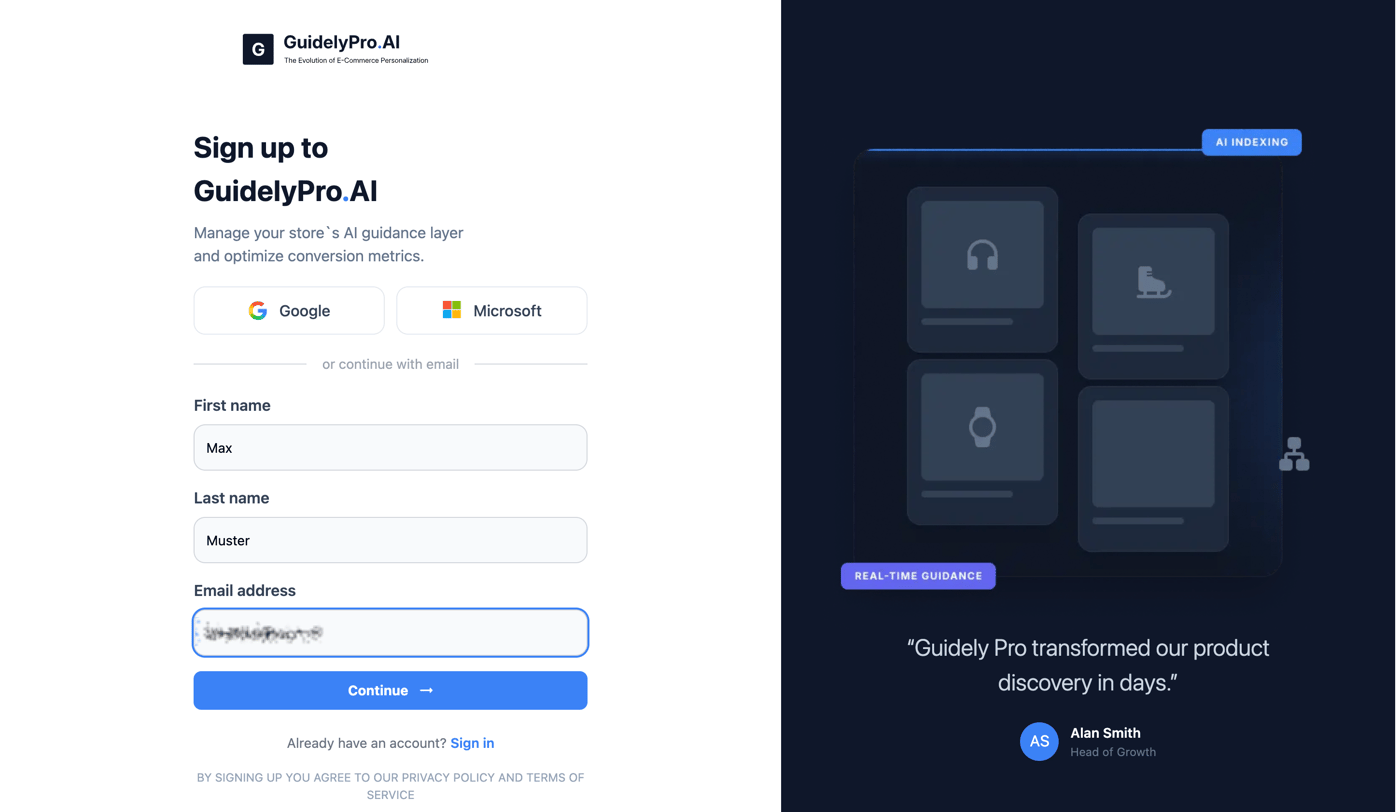
4
Select your platform
Select Shopify as your platform and confirm to continue.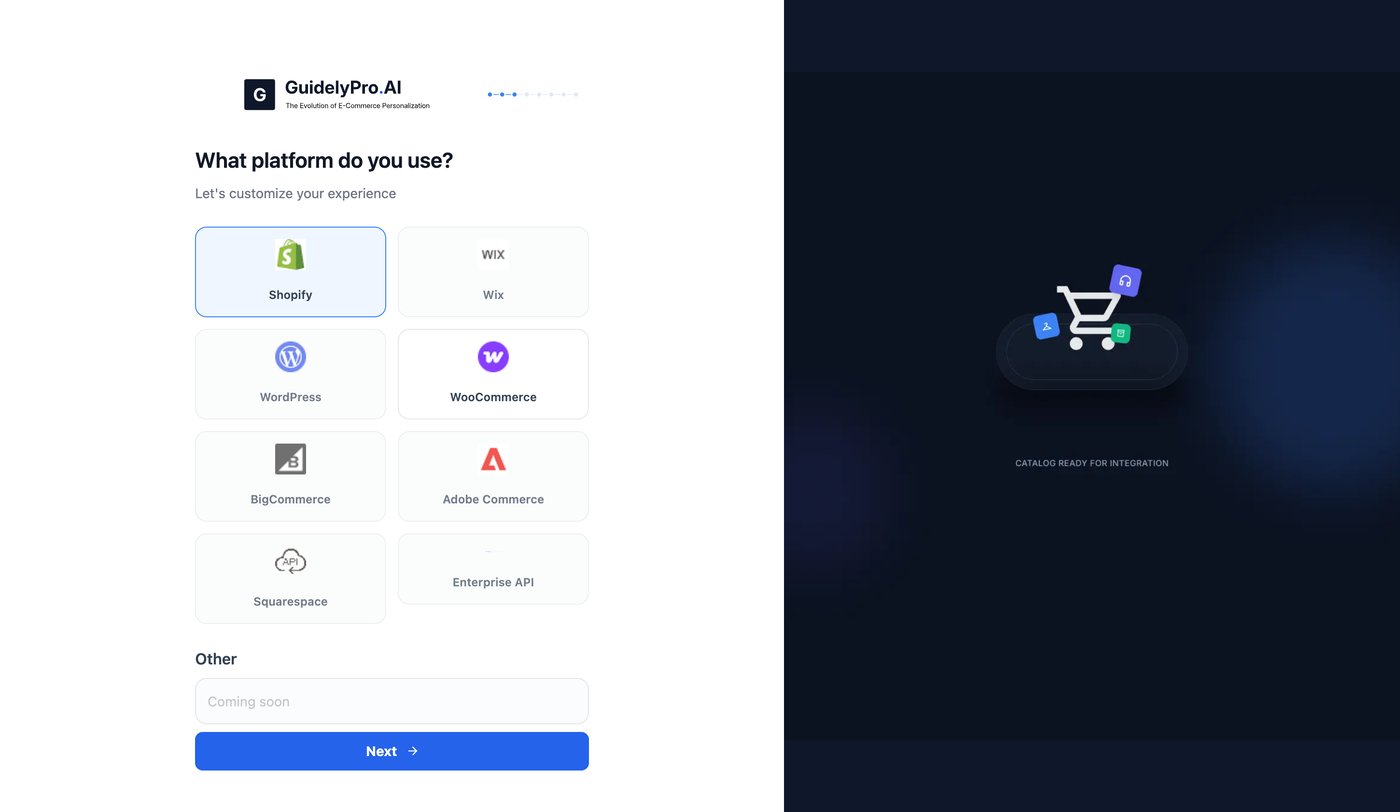
5
Enter your Shopify domain
Enter your Shopify domain. You can find it in your Shopify admin.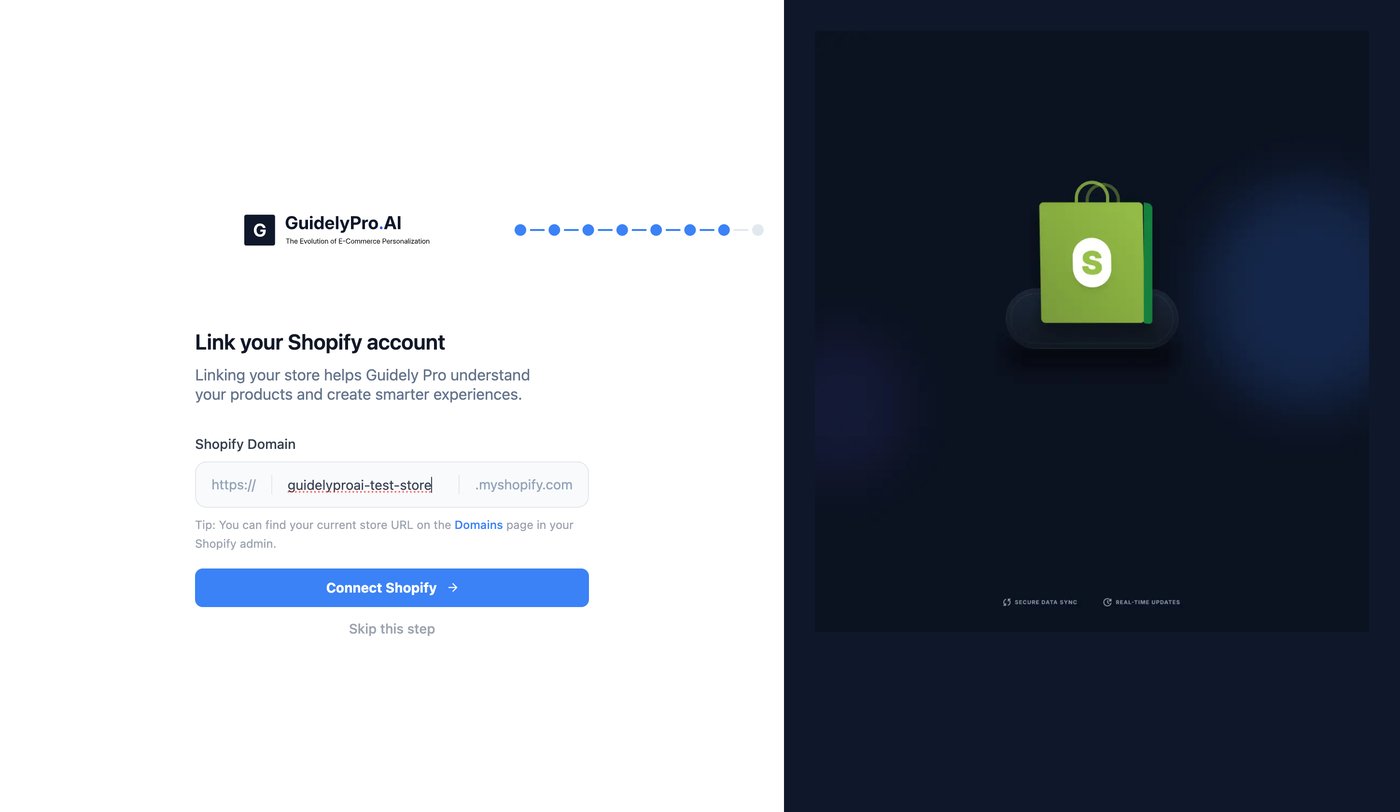
Part 3 — Choose your plan
1
Pick a subscription
Choose the subscription that best fits your needs, then confirm to continue.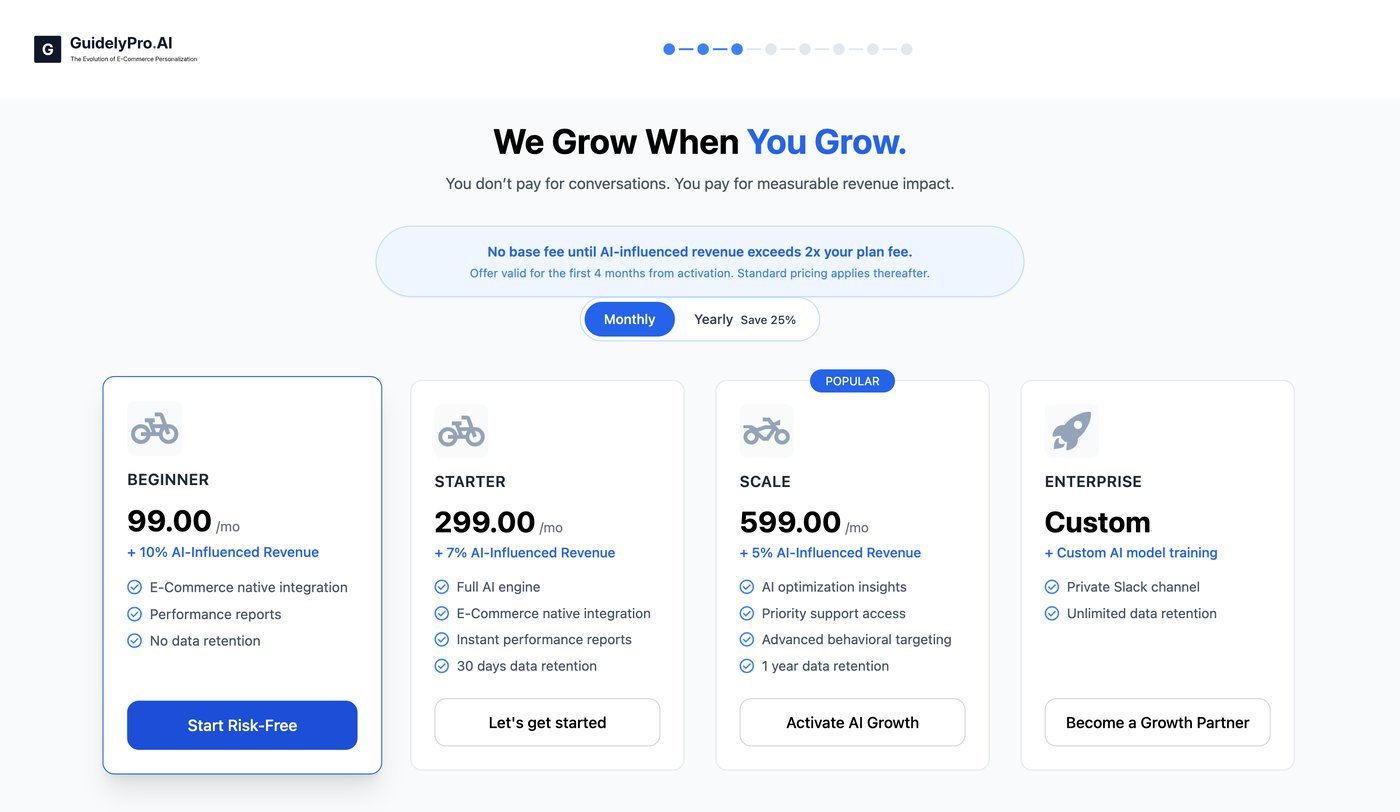
Part 4 — Build and publish your first experience
1
Create an experience
Create your first experience — it takes a couple of seconds.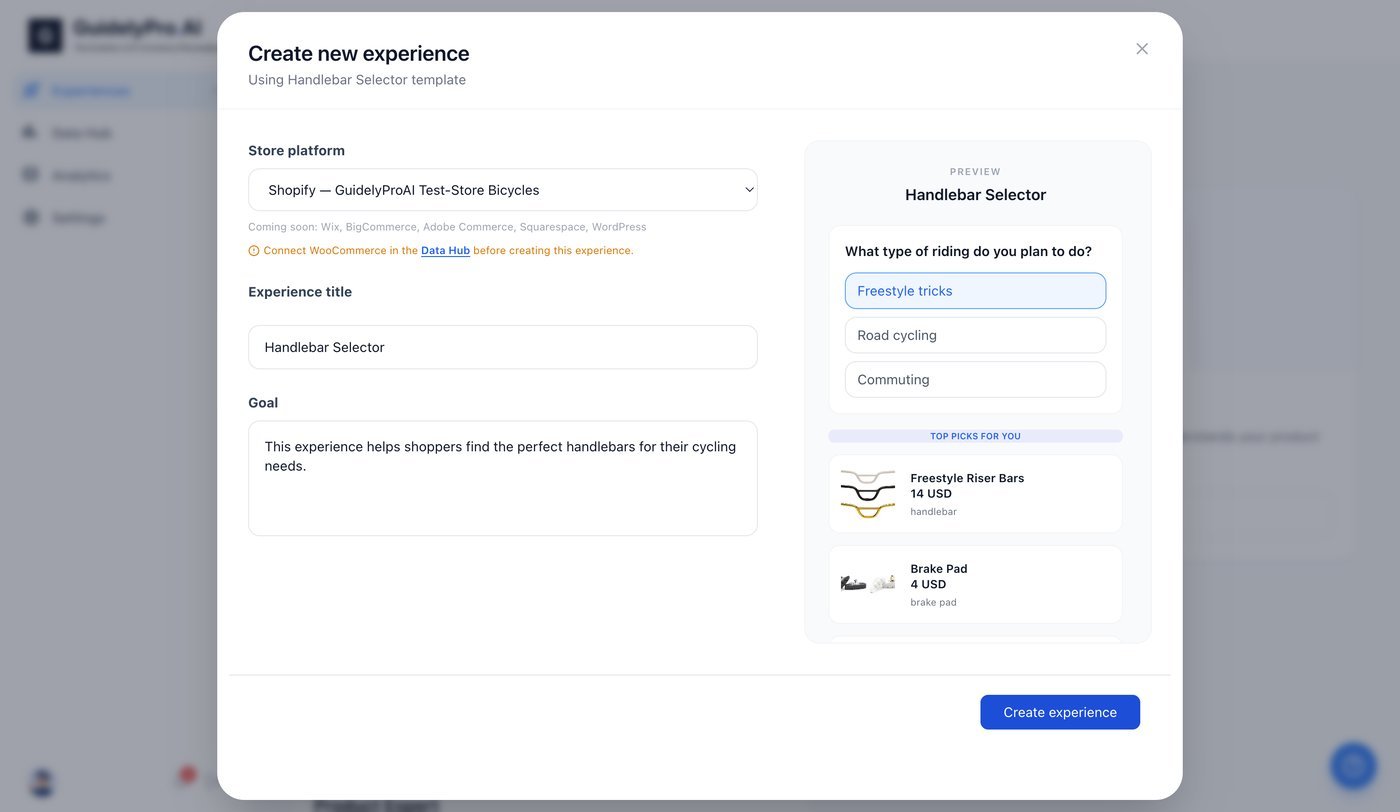
2
Define initial parameters
In the Home tab, define the initial parameters: set the number of recommended products to display, establish clear recommendation guidelines, and configure additional rules and settings.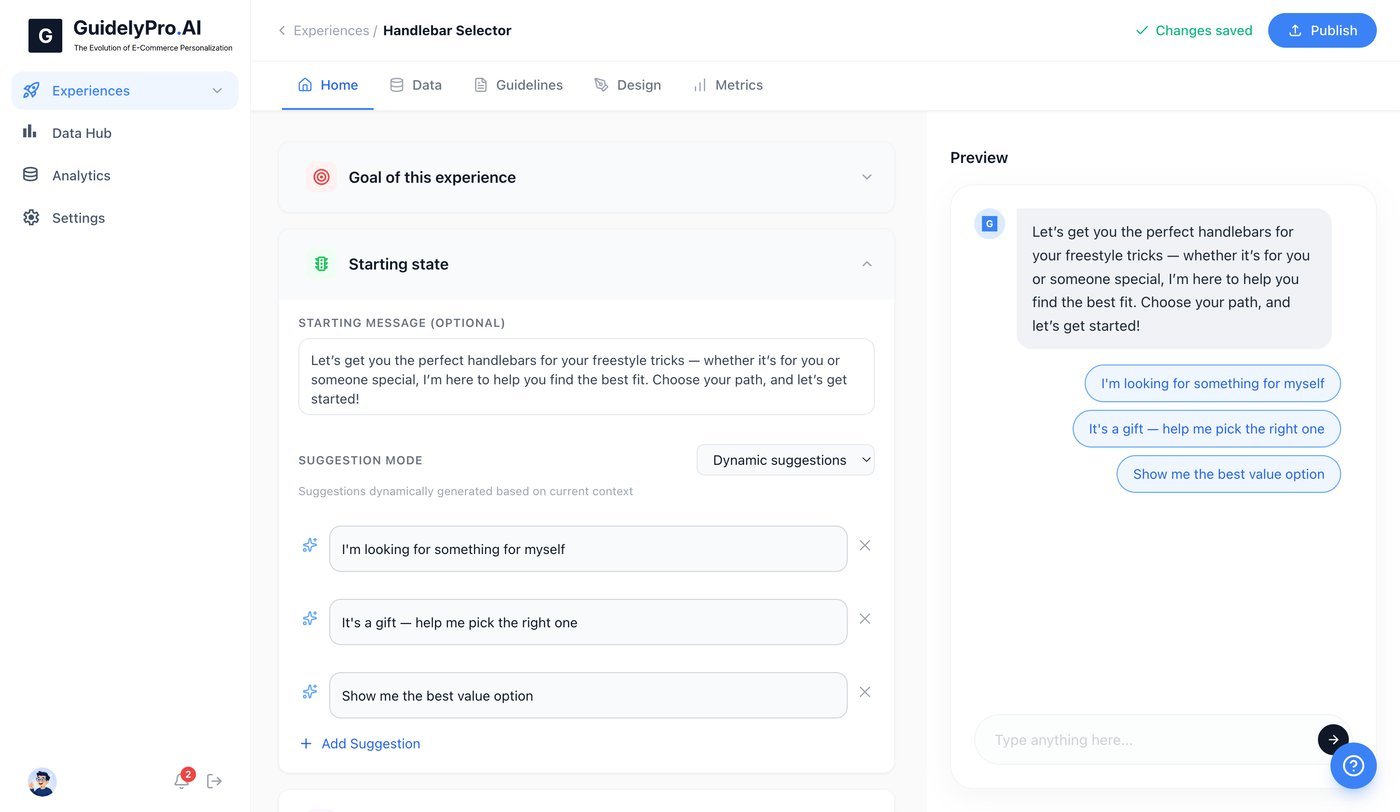
3
Set tone and guidelines
Define the overall tone and guidelines for your experience.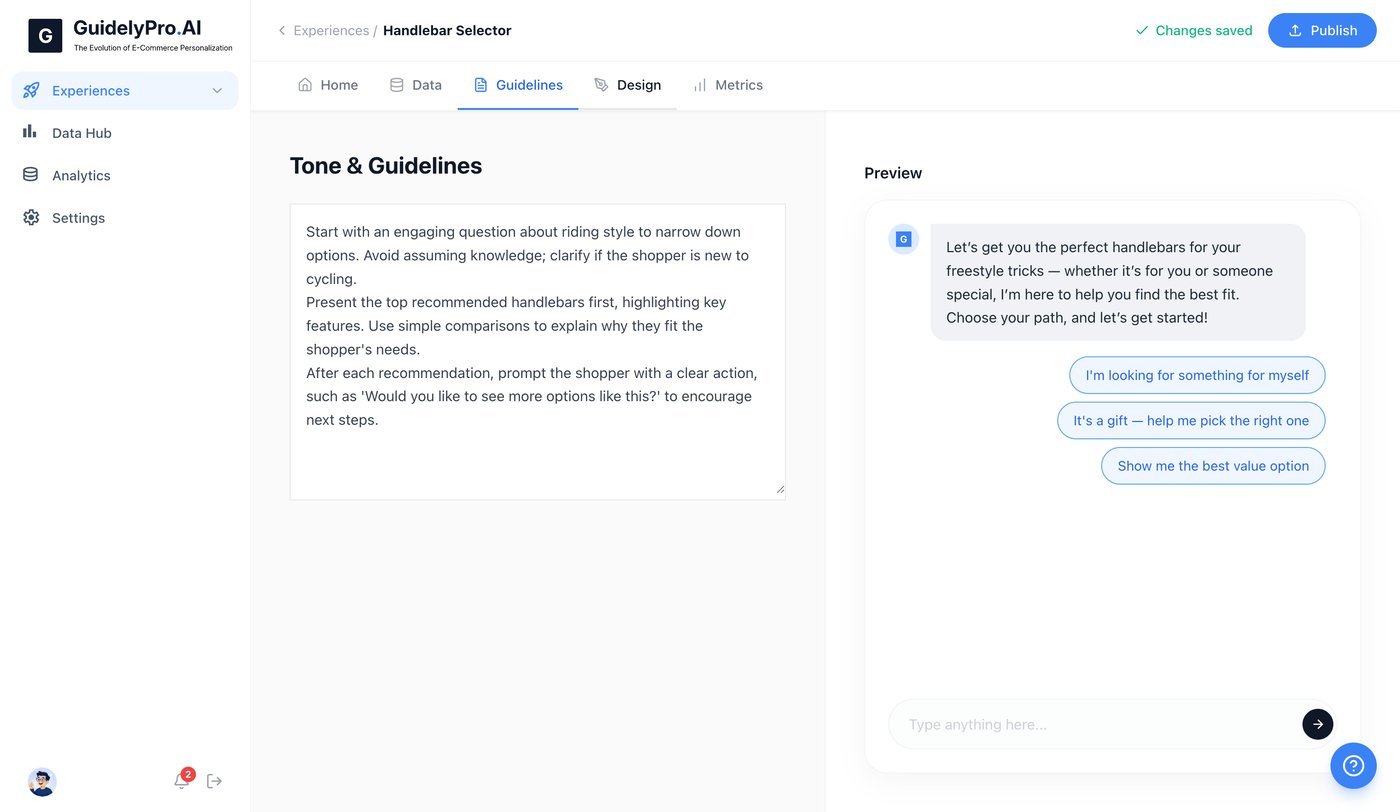
4
Match your brand
Adjust the design so the experience looks native to your store.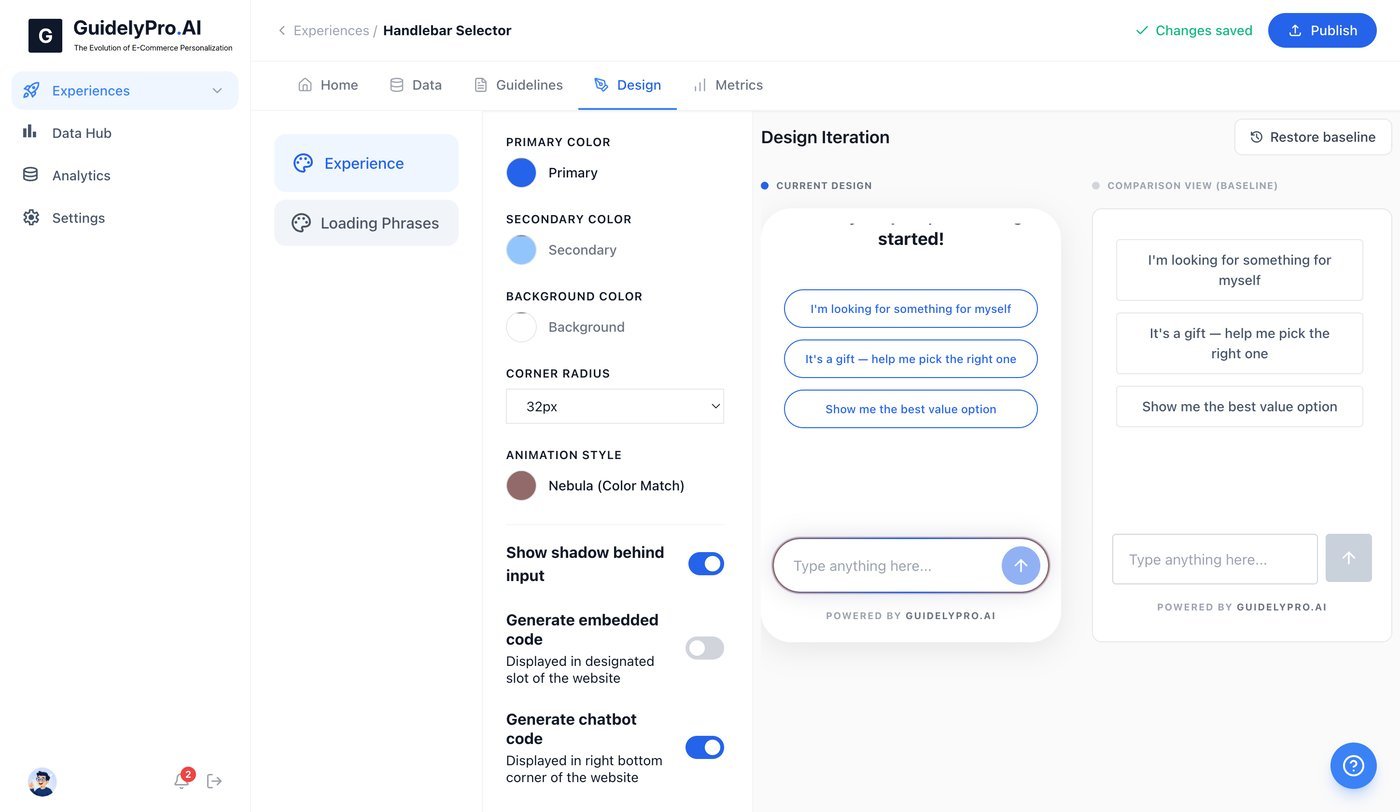
5
Publish
Publish the experience instantly, top right corner.
6
Try it yourself
Open your store and get a first-hand taste of the conversion engine you just created.