> ## Documentation Index
> Fetch the complete documentation index at: https://docs.guidelypro.ai/llms.txt
> Use this file to discover all available pages before exploring further.
# Design
The **Design** tab controls how your Experience looks and appears on your website.
This is where you customize visual styling, layout behavior, and how the AI is embedded on your store.
 ***
# Experience
### 🎨 Visual Customization
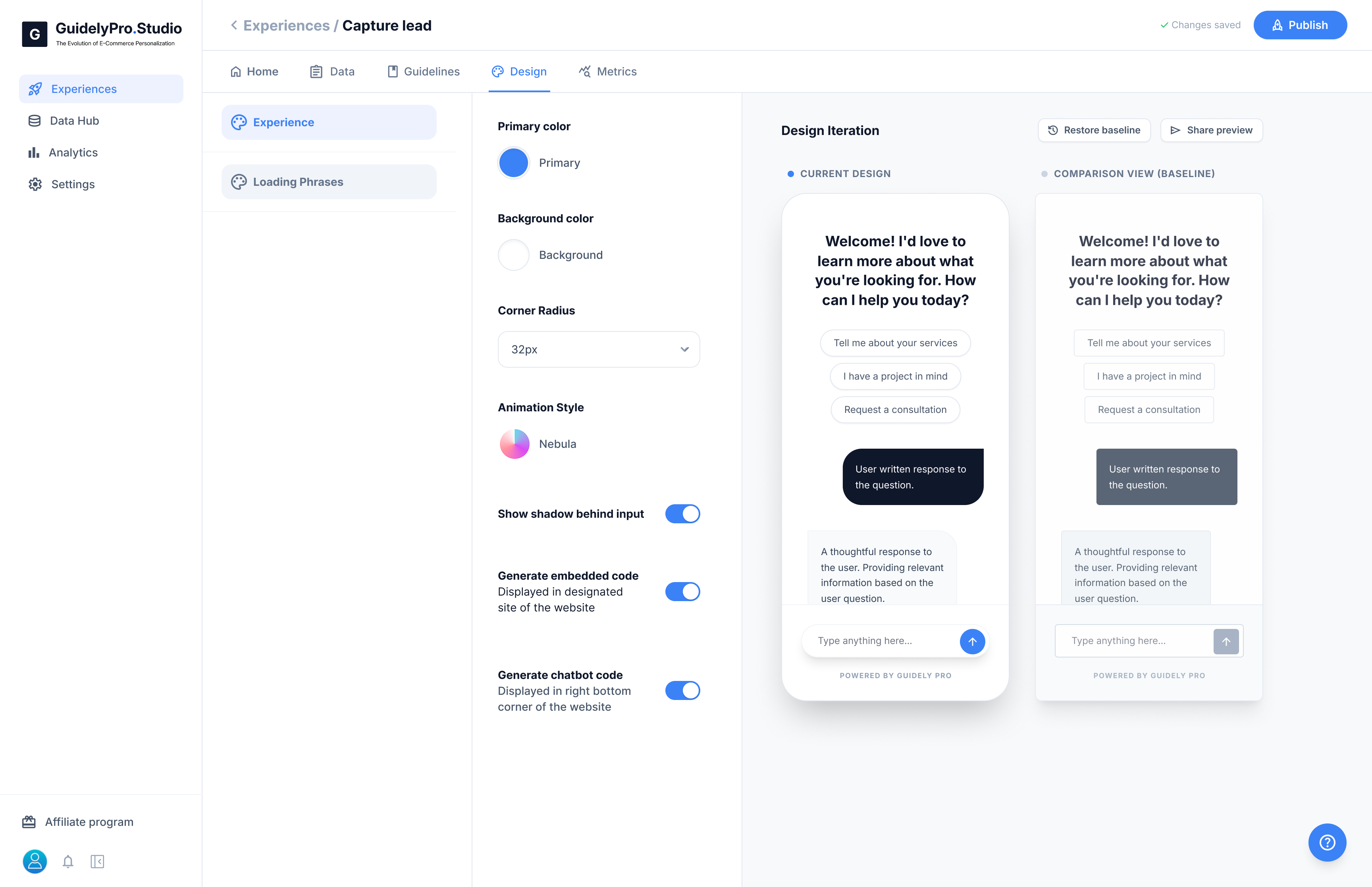
You can adjust the core appearance of your Experience:
* **Primary color** – Sets the main brand color
* **Background color** – Controls the chat background
* **Corner radius** – Adjusts roundness of UI elements
* **Animation style** – Defines interaction effects
* **Input shadow** – Adds depth to message input field
These settings ensure the Experience matches your brand design.
***
### 🖥 Display Options
Choose how the Experience appears on your website:
* **Generate embedded code** – Display inside a specific section of a page
* **Generate chatbot code** – Display as a floating widget in the bottom corner
You can enable one or both depending on your use case.
***
### 🔄 Design Iteration Preview
On the right side, you can preview changes in real time.
You can:
* Compare with baseline design
* Restore previous version
* Share preview link
This allows you to refine the look before publishing.
***
# Loading Phrases
The **Loading Phrases** section controls what visitors see while the AI is generating a response.
These short messages create a smoother and more engaging waiting experience.
***
# Experience
### 🎨 Visual Customization
You can adjust the core appearance of your Experience:
* **Primary color** – Sets the main brand color
* **Background color** – Controls the chat background
* **Corner radius** – Adjusts roundness of UI elements
* **Animation style** – Defines interaction effects
* **Input shadow** – Adds depth to message input field
These settings ensure the Experience matches your brand design.
***
### 🖥 Display Options
Choose how the Experience appears on your website:
* **Generate embedded code** – Display inside a specific section of a page
* **Generate chatbot code** – Display as a floating widget in the bottom corner
You can enable one or both depending on your use case.
***
### 🔄 Design Iteration Preview
On the right side, you can preview changes in real time.
You can:
* Compare with baseline design
* Restore previous version
* Share preview link
This allows you to refine the look before publishing.
***
# Loading Phrases
The **Loading Phrases** section controls what visitors see while the AI is generating a response.
These short messages create a smoother and more engaging waiting experience.
 ***
### ⏳ What Are Loading Phrases?
Loading phrases appear briefly when the AI is:
* Reviewing user preferences
* Searching for matching products
* Generating recommendations
* Processing responses
They reassure visitors that something is happening in real time.
***
### ✏️ Customize Your Messages
You can:
* Edit existing phrases
* Remove phrases
* Add new custom phrases
Examples:
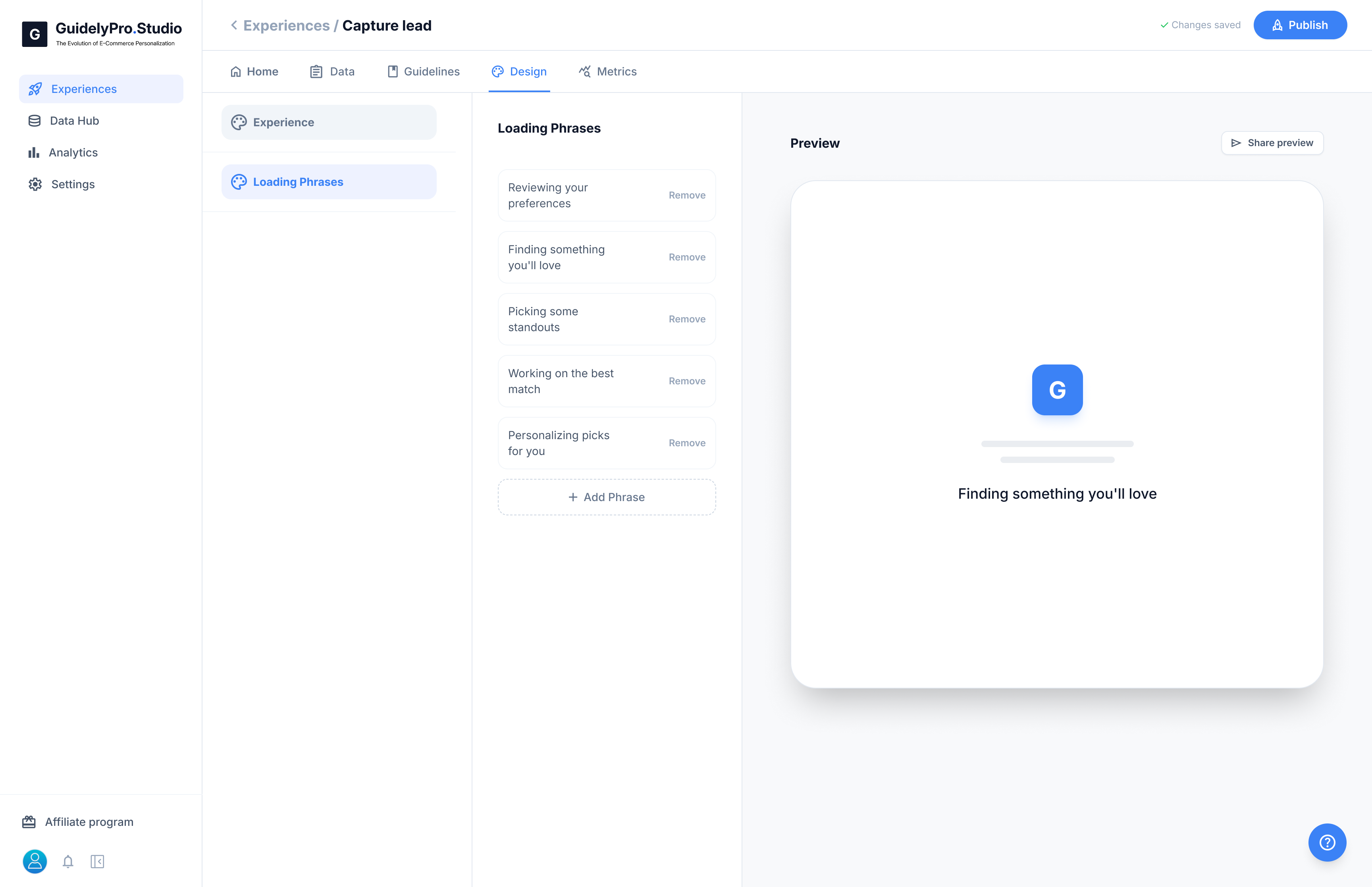
* “Finding your perfect match…”
* “Personalizing your picks…”
* “Reviewing your preferences…”
Keep them short, positive, and action-oriented.
***
### 👀 Live Preview
On the right side, you can preview how the loading phrase will appear inside the experience.
This helps ensure the tone matches your brand.
Well-crafted loading phrases make the Experience feel faster, smarter, and more human.
***
The **Design tab** ensures your Experience feels native to your store and visually aligned with your brand.
***
### ⏳ What Are Loading Phrases?
Loading phrases appear briefly when the AI is:
* Reviewing user preferences
* Searching for matching products
* Generating recommendations
* Processing responses
They reassure visitors that something is happening in real time.
***
### ✏️ Customize Your Messages
You can:
* Edit existing phrases
* Remove phrases
* Add new custom phrases
Examples:
* “Finding your perfect match…”
* “Personalizing your picks…”
* “Reviewing your preferences…”
Keep them short, positive, and action-oriented.
***
### 👀 Live Preview
On the right side, you can preview how the loading phrase will appear inside the experience.
This helps ensure the tone matches your brand.
Well-crafted loading phrases make the Experience feel faster, smarter, and more human.
***
The **Design tab** ensures your Experience feels native to your store and visually aligned with your brand.